



Whether you are a software developer writing complex code, a digital marketer juggling dozens of campaigns, or a remote worker trying to stay focused in a distracting world, your Mac is the central hub of your professional life. Out of the box, Apple provides a beautifully designed, intuitive operating system. However, for professionals looking to squeeze every ounce of efficiency out of their day, the default setup is only the beginning. The actual Interesting Info about Allmacsoft.
Transforming your computer from a simple workstation into a finely tuned engine requires the right software. By thoughtfully curating the Top Productivity Tools for macOS, you can eliminate friction, reduce cognitive load, and reclaim hours of your workweek.
In this comprehensive guide, we dive deep into the ultimate Mac productivity apps and strategies. We will explore everything from optimising the built-in utilities that Apple provides to comparing heavyweight third-party applications to answering the perennial question of whether premium software is worth your hard-earned money.
Grab a cup of coffee, open your notes app, and let’s explore the ultimate macos productivity tools that will completely revolutionize the way you work.
1. Mastering the Foundation: Native macOS Productivity Features
Before you spend a single dollar or download any third-party software, it is crucial to recognize the power already resting on your hard drive. Over the last few macOS iterations, Apple has quietly introduced incredibly powerful tools that many users simply overlook. Leveraging these built-in tools is the first step toward true efficiency.
Organizing Digital Files with macOS Smart Folders
File management is often the bane of the modern knowledge worker’s existence. If you find yourself constantly clicking through a labyrinth of folders to find an invoice or a project asset, you are wasting valuable time. This is where organizing digital files with macOS Smart Folders becomes an absolute game-changer.
Unlike a regular folder, a Smart Folder does not actually contain files; it is a saved search query that updates in real time.
How to set up a high-utility Smart Folder:
- Open Finder and click File > New Smart Folder.
- Click the + button in the top right corner to add search criteria.
- Use Case 1 (The Review Folder): Set the criteria to Kind is Document, and Last Modified date is within last 7 days. Save this to your sidebar as “Recent Docs.”
- Use Case 2 (The Large File Purge): Set the criteria to File Size is greater than 500 MB. This instantly creates a living directory of your largest files, making routine hard drive cleanups effortless.
- Use Case 3 (Tag-Based Projects): If you use macOS color tags, you can create a Smart Folder for a specific project tag, instantly aggregating files scattered across your Desktop, Documents, and Downloads folders into one unified view.
Customizing macOS Shortcuts for Maximum Efficiency
Originally ported over from iOS, the Shortcuts app on Mac is an automation powerhouse. If you are wondering how to automate repetitive tasks on Mac without learning to write complex AppleScript or bash scripts, Shortcuts is your answer.
By customizing macOS Shortcuts for maximum efficiency, you can chain together multiple actions into a single click or keyboard combination.
Actionable Automation Ideas to Build Today:
- The “Start My Day” Shortcut: Create a shortcut that automatically opens your email client, launches your calendar, plays a specific focus playlist on Apple Music or Spotify, and sets your Mac’s focus mode to “Work.” Assign this to a keyboard combination and trigger it every morning.
- Image Resizer: If you manage a blog or social media, create a Shortcut that takes any selected image in Finder, resizes it to 1200 pixels wide, converts it to WebP format, and saves it to your desktop. Add this to your Quick Actions menu so you can just right-click any image and resize it instantly.
- Meeting Prep: Build a shortcut that creates a new Apple Note titled with the current date and your next calendar event’s name, ready for you to take meeting minutes.
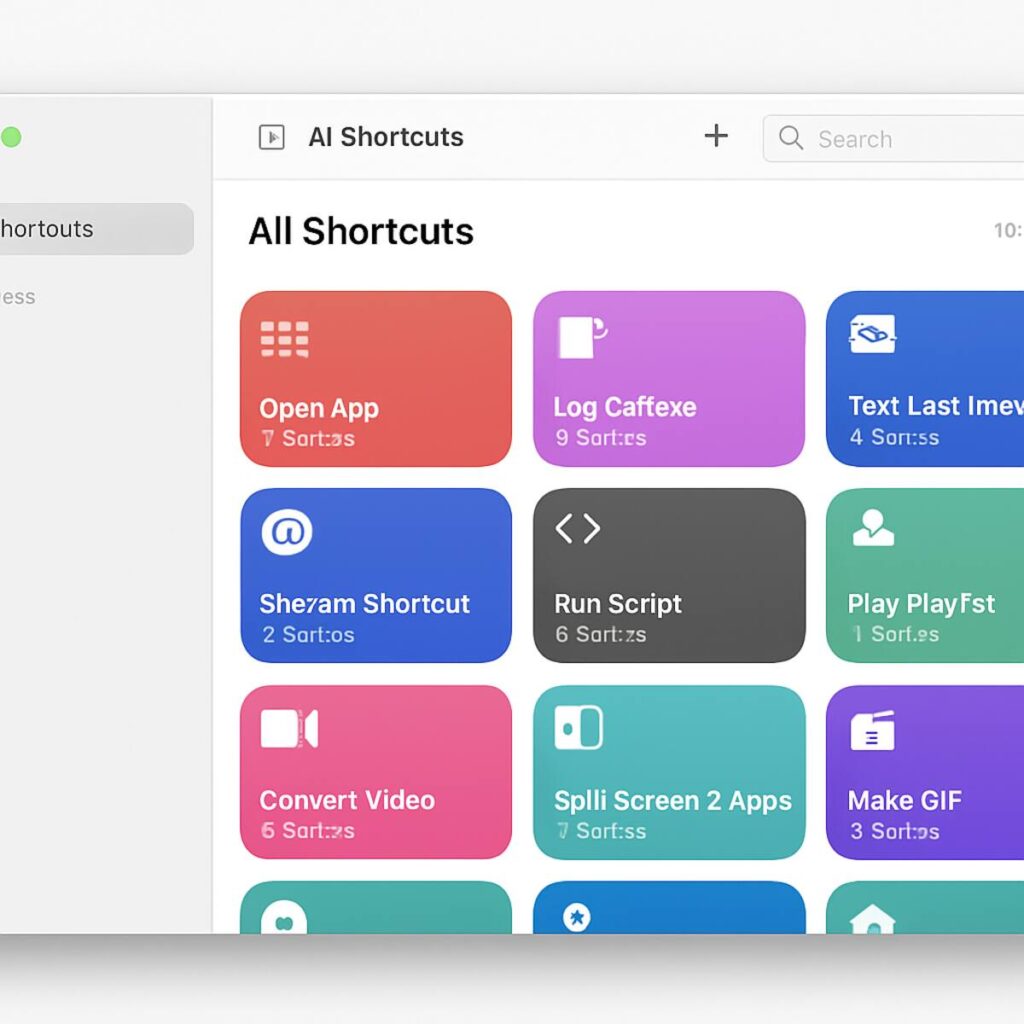
Exploring these native macOS productivity features worth using ensures that you have a strong, highly customized foundation before you even begin installing external applications.
2. The Command Center: Application Launchers & Search
Apple’s native Spotlight search is excellent for basic math and finding local files, but power users quickly outgrow its limitations. The true secret to moving at the speed of thought on a Mac is adopting a third-party application launcher. This category represents the absolute pinnacle of Mac productivity apps, serving as the central nervous system of your workflow.
Raycast vs Alfred Comparison for Power Users
For years, Alfred was the undisputed king of Mac launchers. Recently, however, a new challenger, Raycast, has taken the developer and power-user communities by storm. If you are looking to optimize your workflow, understanding the Raycast vs Alfred comparison for power users is essential.
Alfred: The Veteran Workhorse
Alfred has been around for over a decade. It operates on a freemium model: basic search is free, but unlocking its full potential requires purchasing the “Powerpack.”
- Pros:
- Incredible Speed: Alfred is unbelievably fast. It is written natively and uses very few system resources.
- Custom Workflows: The visual workflow builder allows you to connect hotkeys, keywords, and scripts without needing to be a senior software engineer.
- Longevity: A massive, established community means there is an existing workflow for almost anything you can imagine (e.g., controlling Spotify, converting currencies, searching specific subreddits).
- Cons:
- The interface, while functional, feels a bit dated compared to modern macOS design standards.
- The best features are hidden behind a paid upgrade.
Raycast: The Modern Challenger
Raycast is a newer, highly polished application that feels like the natural evolution of Spotlight. For individuals, its core features (and its massive extension store) are entirely free.
- Pros:
- All-in-One Utility: Out of the box, Raycast includes clipboard history, window management, text snippets, and a system uninstaller. You don’t need to download extra apps for these features.
- Developer-Friendly Extensions: The Raycast extension store is built using React and Node.js, making it incredibly easy for developers to build integrations. You can find native extensions for Jira, GitHub, Notion, Linear, and more.
- Modern UI: It looks stunning and fits perfectly into modern macOS aesthetics.
- Built-in AI: Raycast offers a Pro tier that integrates ChatGPT and Claude directly into your command bar, allowing you to ask questions, rewrite text, or generate code without opening a browser.
- Cons:
- It is slightly more resource-intensive than Alfred (though still very lightweight).
- The workflow building is less visual and requires writing code if you want to build something from scratch.
The Verdict: If you love visually connecting scripts and prefer a one-time payment model (for the Powerpack), stick with Alfred. If you want an incredibly gorgeous, modern tool where everything from window management to API integrations is free and out of the box, Raycast is the undisputed winner.
How to Automate Repetitive Tasks on Mac via Launchers
Regardless of whether you choose Raycast or Alfred, these tools are the ultimate answer to automating repetitive tasks on Mac.
- Text Snippets: Stop typing your Zoom link, email address, or standard customer service replies. Set up snippets so that when you type, Zoom instantly expands to your personal meeting room URL.
- Clipboard History: Both tools let you save everything you have copied for the past 30 days. You can copy three different URLs and two pieces of text from a document, navigate to your email, and paste them all one by one without constantly switching windows.
- Quick File Actions: Instead of opening Finder, use your launcher to search for a file, hit the right arrow key, and choose to email it, resize it, or move it to a different folder directly from your keyboard.
3. Taming the Interface: Window & Menu Bar Management
A cluttered digital workspace leads directly to a cluttered mind. If you are dragging the corners of your application windows to make them fit side-by-side, you are losing micro-seconds that add up to hours over a year.
Improving Window Management Using Keyboard Shortcuts
macOS has historically lagged behind Windows in window management (specifically, the “Window Snapping” feature). While macOS Sequoia introduces some native snapping, power users still benefit massively from dedicated window managers.
By improving window management using keyboard shortcuts, you can navigate your applications seamlessly.
Top Window Management Tools:
- Magnet: A low-cost, incredibly reliable application on the Mac App Store. It allows you to snap windows to halves, thirds, quarters, and external displays using customizable keyboard shortcuts.
- Rectangle: The best free, open-source alternative. It does exactly what Magnet does, with a very similar shortcut structure.
- Amethyst / Yabai: For the ultra-power user, these are “tiling window managers.” Rather than you manually moving windows, the moment you open an app, the software automatically resizes all existing windows to fit the screen mathematically, much like Linux window managers.
Actionable Setup: Download Rectangle and set up these intuitive shortcuts:
- Control + Option + Left Arrow: Snap window to the left half.
- Control + Option + Right Arrow: Snap window to the right half.
- Control + Option + Enter: Maximize the window.
- Control + Option + C: Center the window perfectly on the screen.
Once this is committed to muscle memory, you will never touch your mouse to resize a window again.
Managing Cluttered Menu Bar Icons on macOS
As you install more macos productivity tools, your top menu bar will quickly become a chaotic mess of icons. Not only is this visually distracting, but on modern MacBooks with a camera “notch,” some icons actually get hidden behind the hardware, making them completely inaccessible.
Managing cluttered menu bar icons on macOS is a necessity for a clean, focused aesthetic.
- Bartender 5: The undisputed king of menu bar management. Bartender lets you hide icons behind a single clickable (or hoverable) menu bar item. You can set triggers—for example, show the battery icon only when the battery drops below 20%, or show the Time Machine icon only when a backup is in progress.
- Ice / Hidden Bar: If you are looking for free, open-source alternatives, Ice and Hidden Bar offer basic functionality. You can drag and drop icons into a “hidden” section that expands when you click an arrow. While they lack the conditional triggers of Bartender, they solve the visual clutter problem perfectly.
A clean menu bar lowers your cognitive load and keeps your screen looking professional, especially when screen-sharing during virtual meetings.
4. Deep Work & Time Management
The modern digital environment is built to distract you. Notifications, slack messages, and the endless allure of social media constantly fight for your attention. To combat this, you need software specifically designed to enforce boundaries.
Best Mac Apps for Focus and Deep Work
Cal Newport’s concept of “Deep Work”—the ability to focus without distraction on a cognitively demanding task—is the most valuable skill in the modern economy. Here are the best mac apps for focus and deep work:
- Freedom / Cold Turkey Blocker: These are not mere suggestions; they are digital padlocks. You can configure these apps to block specific websites (or the entire internet) and specific desktop applications (like Slack or Mail) for a set period. Cold Turkey even has a feature where, once a block starts, you cannot disable it—even by restarting your computer—forcing you to finish your work.
- Serene: This app takes a holistic approach to deep work. It asks you to define your singular goal for the day. When you click “Go Serene,” it automatically blocks distracting sites, mutes your phone, updates your Slack status, and plays focus music.
- Flow: If you follow the Pomodoro technique (25 minutes of work followed by a 5-minute break), Flow is a beautiful, minimalist Pomodoro timer that lives in your menu bar. It supports website blocking during your work sprints and provides beautiful statistics on your focus habits.
Mac Time Management: Tracking the Unseen Hours
You cannot optimize what you do not measure. Effective mac time management requires knowing exactly where your hours are going.
Many people hate time tracking because of the friction involved in starting and stopping timers. This is why using time tracking software with native macOS widgets is vital.
- Toggl Track: Toggl is an industry standard for a reason. Their macOS app is robust, but the real magic is in their native macOS desktop widgets. By placing a Toggl widget directly on your desktop or in your Notification Center, you can start your most common timers with a single click, without having to open the app or a web browser.
- Timemator: If you are terrible at remembering to start timers, this app is for you. It automatically tracks what you are doing based on the active window. You can tell it, “If I am in Adobe Premiere, categorize it as Video Editing,” or “If I am on a Figma URL, categorize it as Design.” It quietly builds a timesheet for you in the background.
- Timing: Similar to Timemator, Timing sits in the background and records your app and website usage. At the end of the day, it provides a beautifully visualized timeline of your productivity score and exact hourly breakdown.
By removing the friction of manual data entry, these tools ensure you have accurate data to bill clients or simply analyze your own productivity leaks.
5. Task Management for Every Brain Type
A to-do list is deeply personal. What works for a highly structured project manager might completely paralyze a creative writer. The macOS ecosystem is blessed with an abundance of task managers, but the key is finding the right balance of features without adding unnecessary complexity.
Lightweight Task Managers for Minimal Distraction
While complex systems have their place, many professionals find that heavy, corporate project management tools create more work than they save. For personal productivity, lightweight task managers that minimise distractions are highly recommended.
- Things 3: Things 3 is widely considered the gold standard for macOS design. It is incredibly fast, visually stunning, and strictly adheres to the core principles of David Allen’s Getting Things Done (GTD) methodology without feeling overwhelming.
- Why it excels: The “Magic Plus” button, seamless Apple Calendar integration, and a beautiful “Today” view that keeps you focused strictly on what matters right now. The lack of collaborative features is actually a feature—it is a private sanctuary for your tasks.
- Apple Reminders: Do not sleep on Apple Reminders. With recent macOS updates, Reminders now supports smart lists, natural language processing (e.g., typing “Call John tomorrow at 3 PM”), Kanban-style columns, and location-based triggers. For a free, built-in tool, it has become incredibly robust.
- Todoist: If you need cross-platform compatibility (e.g., you use a Mac but own an Android phone or a Windows PC for gaming), Todoist is the best choice. Its natural-language input is unparalleled, allowing you to build complex tasks purely via the keyboard.
Notion Alternatives for Apple Silicon Performance
Notion has taken the productivity world by storm, serving as a task manager, database, and wiki. However, because Notion is heavily reliant on web technologies (an Electron app), it can sometimes feel sluggish, taking seconds to load a page or sync a database, even on powerful hardware.
If you want blazing speed, you need native software. Here are the best Notion alternatives for Apple Silicon performance:
- Craft: Craft won Apple’s Mac App of the Year for a reason. It is built natively for macOS and iOS (meaning it flies on M1/M2/M3 chips). It offers a block-based editor similar to Notion but is infinitely more beautiful and significantly faster. It excels at document creation, team wikis, and basic task management. Furthermore, Craft offers seamless offline capability—something Notion still struggles with.
- Obsidian: If you primarily use Notion for personal knowledge management (PKM) and linked notes, Obsidian is a vastly superior alternative. It saves everything locally as plain text Markdown files. Because it isn’t waiting on a server ping, opening and searching thousands of notes in Obsidian happens instantly on Apple Silicon.
- Anytype: A newer, open-source alternative to Notion. It functions on a local-first, peer-to-peer architecture. It gives you the database and relational capabilities of Notion but operates with the speed and privacy of a native, local application.
6. The Writer’s Toolkit: Focus and Syntax
Writing requires a specific kind of digital environment. Microsoft Word and Google Docs are packed with ribbons, formatting bars, and collaborative suggestions that can easily distract from the raw act of putting words on a page.
Best Markdown Editors for Mac Writers
Markdown is a lightweight markup language that lets you add formatting (such as headers, bold text, and links) using standard keyboard characters. Learning Markdown means your fingers never have to leave the keyboard to click a formatting button.
For authors, bloggers, and copywriters, choosing among the best Markdown editors for Mac writers is a rite of passage.
- iA Writer: The purest distillation of a writing app. iA Writer is famous for its “Focus Mode,” which grays out everything except the current sentence or paragraph you are working on. There are no preferences to tweak, no fonts to choose from—just you and the text. It forces you to write, not format.
- Ulysses: The ultimate tool for long-form writers. If you are writing a novel, a thesis, or a massive series of blog posts, Ulysses is unparalleled. It uses Markdown but organizes your writing into a library of “sheets” rather than individual files. You can set word count goals with visual progress bars, attach research notes to specific sheets, and export flawlessly to PDF, ePub, or directly to WordPress and Medium.
- Byword: A slightly simpler, more affordable alternative to iA Writer and Ulysses. It provides a clean, elegant Markdown writing experience with highly reliable iCloud syncing.
By adopting a dedicated Markdown editor, you separate the act of writing from the act of publishing, allowing you to stay in a creative flow state much longer.
7. Supercharging the Finder and File System
Despite Apple’s design prowess, the native macOS Finder has historically frustrated power users. Navigating deep folder hierarchies, moving files between disparate locations, and managing FTP servers natively can feel clunky.
Essential Third-Party Finder Extensions for Efficiency
To truly master your file system, you need to look at essential third-party Finder extensions for efficiency and full-fledged Finder replacements.
- Default Folder X: This utility is a hidden gem that pays for itself in a week. Whenever you click “Save As” or “Open” in any Mac application, Default Folder X attaches a discreet toolbar to the dialog box. It allows you to instantly jump to your most recently used folders, your favorite folders, or any folder you currently have open in Finder. It completely eliminates the tedious clicking through directories every time you save a file.
- ForkLift (or Path Finder): If you regularly deal with massive numbers of files, manage web servers, or work with complex folder structures, a dual-pane file manager is vital. ForkLift provides a side-by-side view of two directories. You can drag files from the left pane to the right pane effortlessly. It also integrates FTP, SFTP, and Amazon S3 connections directly into the file manager, making it essential for web developers and designers.
- QSpace: A rising star in file management, QSpace is a highly customizable, multi-pane file manager. It allows you to save “Workspaces”—specific arrangements of opened folders. For instance, you could have a “Video Editing Workspace” that instantly opens up your raw assets folder on the left, your sound effects library in the top right, and your final exports folder in the bottom right.
- Dropover: When you need to move a file from a folder deep in your Documents to a web browser upload field, the drag-and-drop dance can be frustrating. Dropover allows you to drag a file, shake your mouse, and create a temporary “shelf” on your screen. You can drop files onto this shelf, navigate to your destination at your leisure, and then drag the files off the shelf. It makes file manipulation significantly less stressful.
8. The Remote Work Reality: Communication & Collaboration
The shift to distributed teams has placed new demands on our computers. Your Mac is no longer just a workstation; it is a communication hub, a broadcasting studio, and a virtual conference room.
Optimizing macOS Workflow for Remote Work
To avoid the fatigue and friction associated with endless video calls and remote collaboration, optimizing macOS workflow for remote work is absolutely essential.
- Meeter or MeetingBar: If your day is dictated by virtual meetings, you know the panic of scrambling to find the right Zoom or Google Meet link in your calendar at 1:59 PM. These menu-bar apps sync with your calendar and place a countdown to your next meeting directly in your menu bar. When it is time for the meeting, you simply click the icon, and it automatically launches the correct app and joins the call.
- Camo: The webcam on older Macs is notoriously poor. Camo lets you use the iPhone’s incredibly powerful camera as your Mac’s webcam. It connects via USB or wirelessly and provides granular control over lighting, bokeh, and zoom, instantly upgrading your video presence. (Note: Apple introduced “Continuity Camera” recently, which does something similar, but Camo remains vastly superior in its level of fine-tuned adjustments and cross-compatibility.
- Loopback or Soundsource (by Rogue Amoeba): Managing audio on a Mac during a screen share can be a nightmare. If you want to share a specific app’s audio (like playing a Spotify track over a Zoom call without sharing your entire system audio, including notification dings), Loopback allows you to route audio between applications like a virtual mixing board. SoundSource sits in your menu bar and lets you adjust the volume and equalizer of individual apps independently.
- Cleanshot X: Remote communication relies heavily on asynchronous updates. Explaining a visual problem via text takes ten minutes; showing it takes ten seconds. Cleanshot X completely replaces the native Mac screenshot tool. It allows you to capture screens, instantly add beautiful annotations (arrows, blurred out sensitive info, highlighted boxes), and record screen videos as GIFs or MP4s. It provides a cloud link immediately upon capture, allowing you to drop it into Slack rather than uploading a large video file. It is arguably one of the most vital remote work tools available.
9. The Economics of Productivity
As you look through these recommendations, you will notice a mix of free, freemium, and premium software. This brings up a common debate in the tech community.
Are Paid Mac Utility Apps Worth the Investment?
With so many free tools available, are paid Mac utility apps worth the investment? The short answer is: absolutely, provided you measure the return on investment (ROI) in terms of your hourly rate.
Let’s do the math. If you value your time at $50 an hour, a $30 application only needs to save you roughly 40 minutes of time over its entire lifetime to break even.
An application like TextExpander (or the snippet feature in Raycast/Alfred) might save you 5 minutes a day in typing. Over a 250-day work year, that is over 20 hours saved. In that context, spending $30 to $50 on premium software is not an expense; it is a highly profitable investment.
The Subscription vs. Perpetual License Debate: The software industry has heavily shifted toward subscription models. While paying $5 a month for an app doesn’t sound like much, “subscription fatigue” is real. When building your toolkit, prioritize apps that offer a one-time perpetual license (like Things 3, Magnet, or Alfred) whenever possible.
The Setapp Alternative: If you want access to dozens of premium macos productivity tools without buying them individually, consider Setapp. Often described as the “Netflix of Mac apps,” Setapp charges a flat monthly fee (around $9.99) and gives you full access to a curated library of over 240 premium apps.
Many of the apps discussed in this guide—including CleanShot X, Bartender, Default Folder X, Ulysses, and Timing—are available on Setapp. If you plan to use more than three of these premium apps, a Setapp subscription is economically the smartest move you can make. It removes the friction of trying out new tools and ensures you always have the latest, fully unlocked versions.
Conclusion: Building Your Custom Workflow
Transforming your computer with the Top Productivity Tools for macOS is not about downloading every application on this list today. Attempting to overhaul your entire workflow at once will only lead to overwhelming friction and a steep, frustrating learning curve.
Instead, take an incremental approach.
- Start with the foundations: Spend an afternoon setting up native macOS Smart Folders and experimenting with the Shortcuts app.
- Upgrade your command center: Choose between Raycast and Alfred, and commit to using it instead of Spotlight for a week. Force yourself to use keyboard shortcuts to open apps.
- Target your biggest pain point: If your screen is a mess, get a window manager like Rectangle. If you are distracted, install Cold Turkey or Flow. If file management slows you down, try Default Folder X.
Your Mac is a blank canvas. By thoughtfully integrating these Mac productivity apps, you are not just making your computer faster—you are making yourself faster, sharper, and much more effective. Take control of your digital environment today, and watch your productivity soar.
