



If you are a book lover, a student, or a busy professional, you have likely experienced the undeniable fatigue that comes from staring at glaring LCD and OLED screens all day. Enter the world of E Ink technology. While devices like the Kindle and Kobo have long dominated the basic digital reading space, a new tier of premium, high-performance E Ink tablets has revolutionized how we read, write, and work. Leading this charge is Onyx Boox. The actual Interesting Info about Onyx ereader Canada.
Finding the perfect Onyx ereader in Canada, however, comes with its own unique set of questions. From navigating import duties and finding local retailers to choosing the right model for your specific needs, the process requires some research.
This comprehensive guide is designed to walk you through everything you need to know about buying, using, and optimizing an Onyx ereader in Canada. Whether you are an academic looking to annotate complex documents or an artist wanting a glare-free sketchpad, this guide will help you make an informed decision.
Part 1: Why Choose an Onyx Boox Device?
Before diving into specific models and buying logistics, it is crucial to understand what sets Onyx Boox apart from the competition.
For years, the e-reader market was split into two categories: closed-ecosystem reading devices (like standard Kindles) and standard LCD tablets (like the iPad). Onyx Boox bridged this gap by creating the ultimate e-reader with Android apps and stylus support.
The Freedom of the Android Ecosystem
Unlike traditional e-readers that lock you into a single bookstore, Onyx Boox devices run on a customized version of the Android operating system. This means you are not forced to buy your books from one specific retailer. You can download the Kindle app, the Kobo app, Libby (for Canadian public libraries), Everand, and even web browsers.
Advanced Note-Taking Capabilities
Onyx devices are widely considered the best E Ink tablets for note taking. Featuring Wacom EMR (Electro-Magnetic Resonance) technology, the stylus requires no batteries and offers pinpoint accuracy, tilt recognition, and pressure sensitivity. This makes the devices incredibly versatile for journaling, sketching, and professional note-taking.
Are Onyx Boox Devices Worth the Investment?
One of the most common questions from Canadian buyers is, “Are Onyx Boox devices worth the investment?” The answer largely depends on your use case. If you only want to read a few novels a year, a basic $150 Kobo or Kindle might suffice. However, if you are experiencing digital eye strain, need to read and annotate dense PDFs, want to organize your entire life on a glare-free screen, or need a dedicated productivity device without the distractions of a standard tablet, an Onyx Boox is absolutely worth the premium price tag.
Part 2: Understanding the Onyx Boox Lineup
To the uninitiated, the sheer number of devices Onyx releases can be overwhelming. Performing an accurate onyx ereader comparison requires understanding the distinct product families in their lineup.
The Difference Between Boox Tab and Note Series
A frequent point of confusion for buyers is the difference between Boox Tab and Note series. Understanding this distinction is vital to making the right purchase.
- The Note Series (e.g., Note Air 3, Note Air 3 C) is designed with a “paper-first” philosophy. They prioritize a natural, tactile writing experience, a slimmer profile, and exceptional battery life. The screen texture often features a rougher, paper-like film. These are ideal for writers, students, and avid readers who want a distraction-free environment.
- The Tab Series (e.g., Tab Ultra C Pro, Tab X): The Tab series is designed to be an “E Ink PC.” These devices are heavier, feature more powerful processors, include a dedicated GPU (Boox Super Refresh technology) for faster screen rendering, and often support magnetic keyboard covers. They feature a smoother glass screen. The Tab series is built for professionals who want to browse the web, type emails, and use productivity apps with minimal screen ghosting.
The Other Families
- The Max/Tab X Series: Massive 13.3-inch devices built specifically for reading A4-sized PDFs at native resolution.
- The Nova Series: Mid-sized 7.8-inch devices, balancing portability with note-taking capabilities (though largely being phased out in favor of the Tab Mini C).
- The Page & Palma Series: Smaller, highly portable devices designed purely for reading on the go, resembling the size of a standard paperback or a smartphone.
Part 3: Spotlight on Top Models for the Canadian Market
Let us take a detailed look at the current heavy hitters in the Onyx lineup, tailored to specific user profiles in Canada.
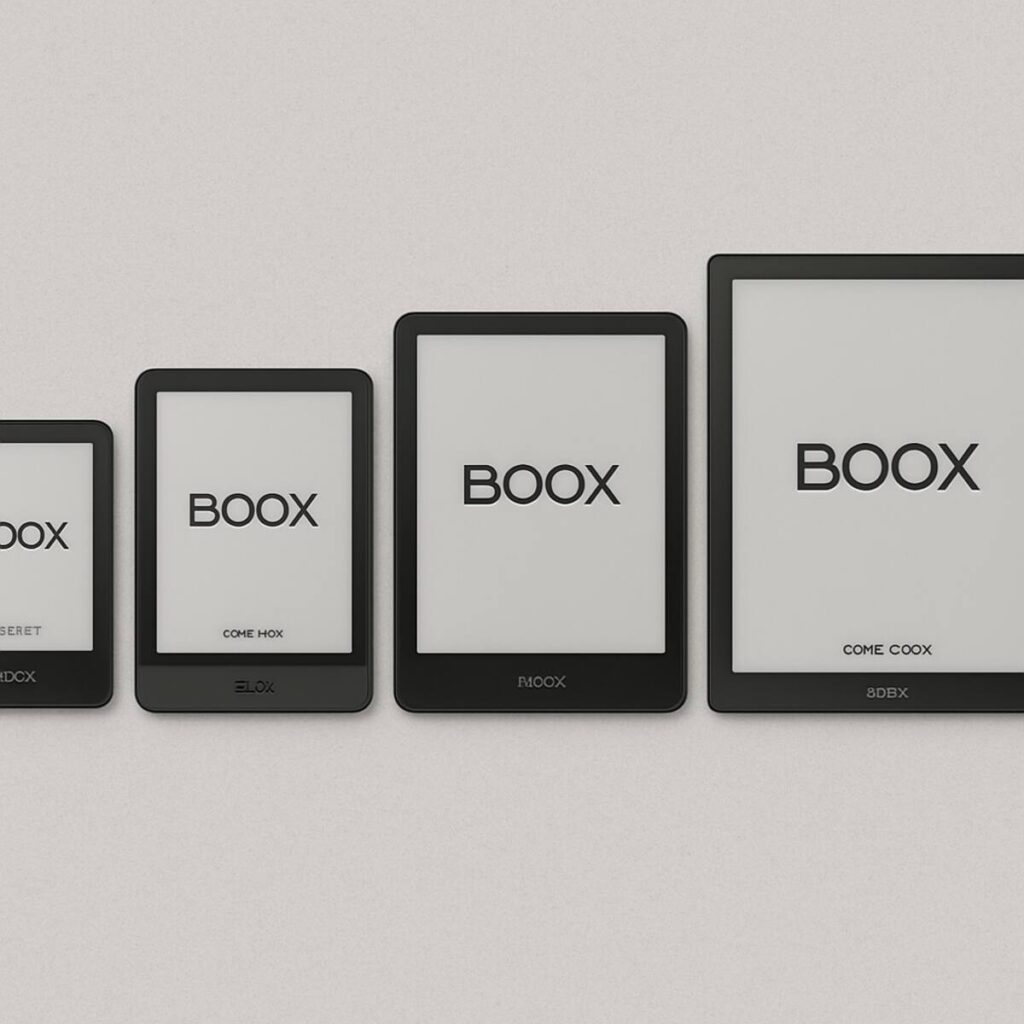
1. Boox Note Air 3 C: The Student and Academic Powerhouse
If we were to write a dedicated review of the Boox Note Air 3 C for students, it would be overwhelmingly positive. Featuring a 10.3-inch Kaleido 3 color E Ink display, this device strikes the perfect balance between form and function.
- Why it works for students: University students in Canada deal with endless PDFs, lecture slides, and digital textbooks. The inclusion of pastel colors means you can highlight texts in yellow, green, or pink, making studying far more intuitive than on a monochrome display.
- Note-taking: The built-in Notes app supports layers, custom templates (such as Cornell notes or graph paper), and handwriting-to-text conversion. You can seamlessly sync your notes to Google Drive or Dropbox, ensuring your lecture notes are never lost.
- Form Factor: The asymmetrical bezel provides an excellent grip for one-handed holding, and the aluminum casing feels incredibly premium.
2. Boox Tab Ultra C Pro: The Professional’s Daily Driver
For business professionals commuting into Toronto or working remotely from a cabin in Banff, the Tab Ultra C Pro is the ultimate productivity machine.
- Performance: Equipped with a faster processor and Boox Super Refresh technology, this device can handle scrolling through web pages, checking emails in Outlook, and typing documents in Microsoft Word much smoother than traditional E Ink devices.
- Camera: Uniquely, the Tab Ultra series features a rear-facing camera. While you won’t use it for photography, it functions as a highly effective document scanner.
- Keyboard Folio: With the optional magnetic keyboard case with a trackpad, it transforms into a distraction-free laptop alternative.
3. Boox Tab X (13.3-inch): The Academic Researcher’s Dream
If you frequently read complex scientific papers, two-column journals, or large technical manuals, the Tab X is arguably the best e-ink devices for academic research.
- The Screen Size: At 13.3 inches, the screen perfectly matches the size of a standard A4 sheet of paper. This is the ultimate solution for reading PDFs on large screen e-ink displays. You never have to pinch, zoom, or pan around a document—you simply read it as the publisher intended.
- Multitasking: The large screen allows for comfortable split-screen functionality. You can have your research paper open on the left half of the screen and your blank notebook open on the right.
4. Boox Palma: The Portable Distraction-Free Companion
Looking like a premium smartphone, the Boox Palma is a 6.13-inch device that slips right into your pocket.
- Use Case: It is designed for those who want to read the news, scroll through articles, or read books during their daily commute on the TTC or the SkyTrain without getting sucked into social media notifications.
- Specs: Despite its size, it packs an octa-core CPU and customizable side buttons for page-turning.
Part 4: The Reading and Writing Experience
When purchasing a premium E Ink device, the physical sensation of interacting with the screen is just as important as the software specs.
The Writing Feel on Onyx Boox Screen
One of the major selling points of the Note series, in particular, is the tactile feedback. The writing feel on Onyx Boox screen is carefully engineered to mimic pen on paper. Out of the box, devices like the Note Air 3 feature a factory-installed screen protector with a micro-texture.
When you drag the Wacom stylus across the surface, you feel a satisfying resistance—often described as a subtle “scratch” or “bite”—that prevents the pen from sliding around uncontrollably, a common complaint when using an Apple Pencil on a bare iPad screen.
- Stylus Customization: Onyx allows you to customize the digital ink extensively. You can choose from a fountain pen, ballpoint pen, marker, pencil, or brush, adjusting the line thickness and pressure sensitivity curves to match your exact handwriting style.
Reading PDFs on Large Screen E-Ink Displays
For many, the native reading app (NeoReader) is the crown jewel of the Onyx software suite. When it comes to reading PDFs, NeoReader is unparalleled.
- Article Mode: If you are reading a multi-column PDF on a 10.3-inch device, NeoReader’s “Article Mode” allows you to divide the page into quadrants. With a tap, it automatically guides you through the columns in the correct reading order, eliminating the need to manually zoom and pan.
- Contrast Adjustment: Scanned PDFs are often faded or hard to read. NeoReader allows you to independently adjust the contrast, bleach the background to pure white, and darken the text, making old scans look like crisp, newly printed documents.
- Translation and TTS: You can instantly translate highlighted text or use the Text-to-Speech (TTS) feature to have the document read aloud to you while you rest your eyes.
Part 5: Onyx Boox vs. The Competition
To make a truly informed decision, it is important to see how Onyx stacks up against other popular devices available in the Canadian market.
Onyx Boox vs Kindle Scribe Comparison
The Amazon Kindle Scribe is incredibly popular due to Amazon’s massive reach, making the Onyx Boox vs Kindle Scribe comparison highly relevant.
- Hardware and Screen: The Kindle Scribe boasts one of the most beautiful 300 PPI monochrome screens on the market and has an incredibly premium, solid build quality. The writing latency is virtually zero, and the simple interface is exceptionally user-friendly.
- Software and Flexibility: This is where the Scribe falls short and the Boox excels. The Kindle Scribe’s note-taking capabilities are very basic—you cannot use layers, you cannot search your handwriting natively on the device, and exporting notes can be clunky. Furthermore, you are locked into the Amazon ecosystem. You cannot download Kobo, Libby, or dedicated PDF management apps.
- The Verdict: If you only read Amazon books and want a basic, premium digital notepad, the Scribe is great. If you need robust file management, third-party apps, color screens, or advanced note organization, the Onyx Boox is the undisputed winner.
Onyx Boox vs reMarkable 2
The reMarkable 2 is famous for its hyper-minimalist design and exceptional writing feel.
- The reMarkable Advantage: It offers the most authentic “pencil on paper” feel on the market. Its UI is utterly distraction-free.
- The Boox Advantage: The reMarkable 2 has no front light (you cannot read in the dark), no color options, no third-party apps, and charges a monthly subscription fee for cloud integration. The Onyx Boox provides a front light, an open Android OS, color options, and free cloud syncing.
Onyx Boox vs Kobo Elipsa 2E
As a Canadian brand, Kobo holds a special place in the local market. The Kobo Elipsa 2E is a solid 10.3-inch device.
- The Kobo Advantage: Seamless native integration with OverDrive/Libby for Canadian libraries. Excellent, straightforward reading UI.
- The Boox Advantage: Much better hardware specs, advanced PDF handling, a superior Wacom writing experience (Kobo uses an active, battery-powered stylus which is heavier and has slightly more lag), and the ability to run any Android app.
Part 6: Buying Guide: How to Get Your Onyx eReader in Canada
Purchasing an Onyx device in Canada is slightly more complex than walking into a local electronics store to buy an iPad. Here is everything you need to know about sourcing your device.
Finding Boox Authorized Retailers in North America
To ensure you receive a legitimate product with a valid warranty, you should only purchase from Boox authorized retailers in North America.
- Amazon Canada (Amazon.ca): This is often the safest and easiest route for Canadians. Boox has an official storefront on Amazon.ca. Purchasing here means you get fast Prime shipping, easy Amazon returns, and the price listed is in Canadian Dollars (CAD) with all import duties already handled.
- E-Reader.ca: This is a dedicated Canadian retailer based in Canada. They specialize in E Ink devices and are a fantastic domestic option. Buying from them means you are supporting a Canadian business, shipping is domestic (faster and no surprise border fees), and customer service is local.
- Good e-Reader: Based in Canada, this site runs a comprehensive store for all things E Ink. They ship globally but being headquartered in Canada makes them a viable local option.
- B&H Photo Video: A highly reputable US retailer that ships to Canada. They offer an option to pre-pay customs and taxes at checkout, ensuring no surprise fees at the door.
- Directly from the Boox Official Website (Boox.com): While you can buy directly from their Hong Kong or US warehouses, this method requires navigating international shipping and potential customs fees.
Navigating Importing Electronics to Canada Customs and Duties
If you choose to buy directly from an international retailer or the Boox global store, you must be prepared to pay import duties and taxes when importing electronics into Canada.
When importing a tablet into Canada, the Canada Border Services Agency (CBSA) will assess the package.
- Duties: Thanks to various trade agreements, consumer electronics like tablets and e-readers often do not carry an extra “duty” tariff.
- Taxes: However, you are always responsible for paying your provincial taxes on the CAD value of the item. Depending on your province, you will be charged GST, HST, or a combination of GST and PST (ranging from 5% in Alberta to 15% in the Maritimes).
- Brokerage Fees: Courier companies like DHL, FedEx, or UPS will charge a “brokerage fee” (usually between $15 and $25 CAD) for clearing the item through customs on your behalf.
Actionable Tip: To avoid unexpected border shocks, always try to buy from Amazon.ca, E-Reader.ca, or a US retailer that allows you to pre-pay taxes at checkout (like B&H Photo).
Where to Buy Boox Accessories in Toronto and Across Canada
Finding replacement stylus nibs, magnetic cases, or screen protectors locally can be a challenge. If you are wondering where to buy Boox accessories in Toronto or other major Canadian cities:
- Local Tech Shops: Very few brick-and-mortar stores carry Boox accessories. You will rarely find them in Best Buy or Canada Computers.
- Online is King: Your best bet for accessories is Amazon.ca.
- Third-Party Alternatives: Because Onyx uses standard Wacom EMR technology, you do not need an official Boox stylus. Many Torontonians and Canadians opt to buy third-party styluses easily found at local art supply stores or online. Popular alternatives include the Lamy AL-star EMR (feels like a premium fountain pen), the Staedtler Noris Digital (looks and feels exactly like a traditional wooden pencil), and the Samsung S-Pen.
Part 7: Setup and Software Mastery
Once your Onyx ereader Canada delivery arrives and you unbox your device, the real fun begins. Onyx’s Android interface is incredibly powerful, but it comes with a learning curve.
Installing Google Play Store on Boox Devices
On older Boox devices, getting the Google Play Store to work required a multi-step workaround. Thankfully, Onyx has streamlined this process on all their modern devices (Note Air 3, Tab Ultra, Palma, etc.).
How to enable it:
- Connect your device to Wi-Fi.
- Go to the “Apps” tab on your home screen.
- Tap the hamburger menu (three lines) in the top right corner and select “App Management.”
- Check the box that says “Enable Google Play.”
- You will be prompted to log into your Google Account.
- Note: Because E Ink devices are not “standard” Android tablets, Google requires device certification. The system will prompt you to register your device’s GSF ID. Simply tap the prompt, log in, and hit register.
- Restart your device. The Google Play Store app will now appear, allowing you to download millions of apps natively.
Optimizing Apps for the E Ink Screen
Just because you can download Instagram or YouTube on your Boox does not mean you should. E Ink screens have slow refresh rates compared to LCD screens, meaning animations can cause ghosting (faint remnants of the previous screen).
Onyx solves this with its “E Ink Center,” accessible by swiping down from the top right of the screen. Here, you can optimize any third-party app on a per-app basis:
- Normal Mode: Best for reading static text (Kindle, Kobo apps). Provides the sharpest text but slowest refresh rate.
- Speed/A2 Mode: Slightly degrades text clarity but significantly speeds up screen refresh. Ideal for scrolling through web articles or navigating the Libby app.
- X-Mode: The fastest refresh rate, heavily degrading image quality to allow for watching videos or fast typing without lag.
- App Optimization Settings: You can manually adjust the DPI, contrast, and background bleach for any app to ensure it looks perfect on a monochrome or Kaleido color screen.
Boox Battery Life Optimization Tips
While traditional e-readers can last for months on a single charge, an Android-powered E Ink tablet running Wi-Fi, Bluetooth, and background apps will drain much faster. Here are essential Boox battery life optimization tips:
- Manage Wi-Fi and Bluetooth: Android constantly pings for Wi-Fi networks and Bluetooth devices. Turn these off when you are just reading or writing. You can set the device to automatically disable Wi-Fi after 5 minutes of inactivity.
- Adjust the Frontlight: The frontlight is the biggest battery drain. Use it only when necessary. During the day, rely on ambient room light—E Ink looks better under direct light anyway.
- App Freezing: Go to Settings and enable “App Freezing.” This prevents apps like Gmail or Google Drive from running in the background and draining your battery while the device is asleep.
- Auto Power-Off: Unlike an iPad, an E Ink device takes 20-30 seconds to boot up. However, leaving it in “Sleep” mode slowly drains the battery. Set your device to enter Sleep Mode after 10 minutes of inactivity and to fully “Power Off” after 12 or 24 hours of inactivity.
Part 8: Maintenance, Longevity, and Repair
An Onyx Boox is a premium electronic device and requires care to ensure it lasts for years.
Protecting Your Screen
E Ink screens are fundamentally different from iPad screens. They consist of a delicate glass backplane covered by microcapsules of ink. While they don’t shatter like glass iPads, they are susceptible to pressure damage or torque (bending).
- Always use a rigid folio case. Soft sleeves do not protect the screen from pinpoint pressure if packed tightly in a backpack alongside textbooks or laptops.
- Change your nibs. As you write, the plastic or felt nib on your stylus will wear down and create sharp edges. Continuing to use a worn-down nib can permanently scratch the screen protector. Change your nibs the moment they start feeling rough or angled.
Repair Services for Boox Tablets in Canada
One drawback of buying niche tech is the availability of local repair centers. Currently, official repair services for Boox tablets inside Canada are extremely limited.
- Under Warranty: If your device experiences a manufacturing defect within the one-year warranty period, you will typically have to ship it back to a US or Hong Kong repair center. Boox support will guide you through the RMA process.
- Out-of-Warranty / Accidental Damage: If you crack your screen, replacing an E Ink panel is often as expensive as buying a new device. Local phone/tablet repair shops in Toronto, Vancouver, or Montreal generally do not stock E Ink panels and will struggle to repair them.
- Best Practice: Treat the device with extreme care. Consider purchasing your device via a credit card that offers extended electronics warranties or purchase protection.
Conclusion: Making the Right Choice
Stepping into the world of premium E Ink tablets is a game-changer for digital wellness, focus, and productivity. By choosing an Onyx Boox device, you are opting for unparalleled software flexibility, excellent hardware, and a reading/writing experience that truly bridges the gap between digital convenience and analog comfort.
If you are looking for an Onyx ereader Canada market guide, remember to carefully evaluate your specific needs. Are you a student heavily annotating textbooks? The Note Air 3 C is your best bet. Are you a professional seeking a distraction-free laptop alternative? Look toward the Tab Ultra C Pro. And if you are an academic researcher tackling endless journals, the expansive Tab X will revolutionize your workflow.
By purchasing from authorized North American retailers, optimizing your Android settings, and taking proper care of the hardware, your Onyx Boox will serve as an invaluable tool in your daily digital life for years to come.
