


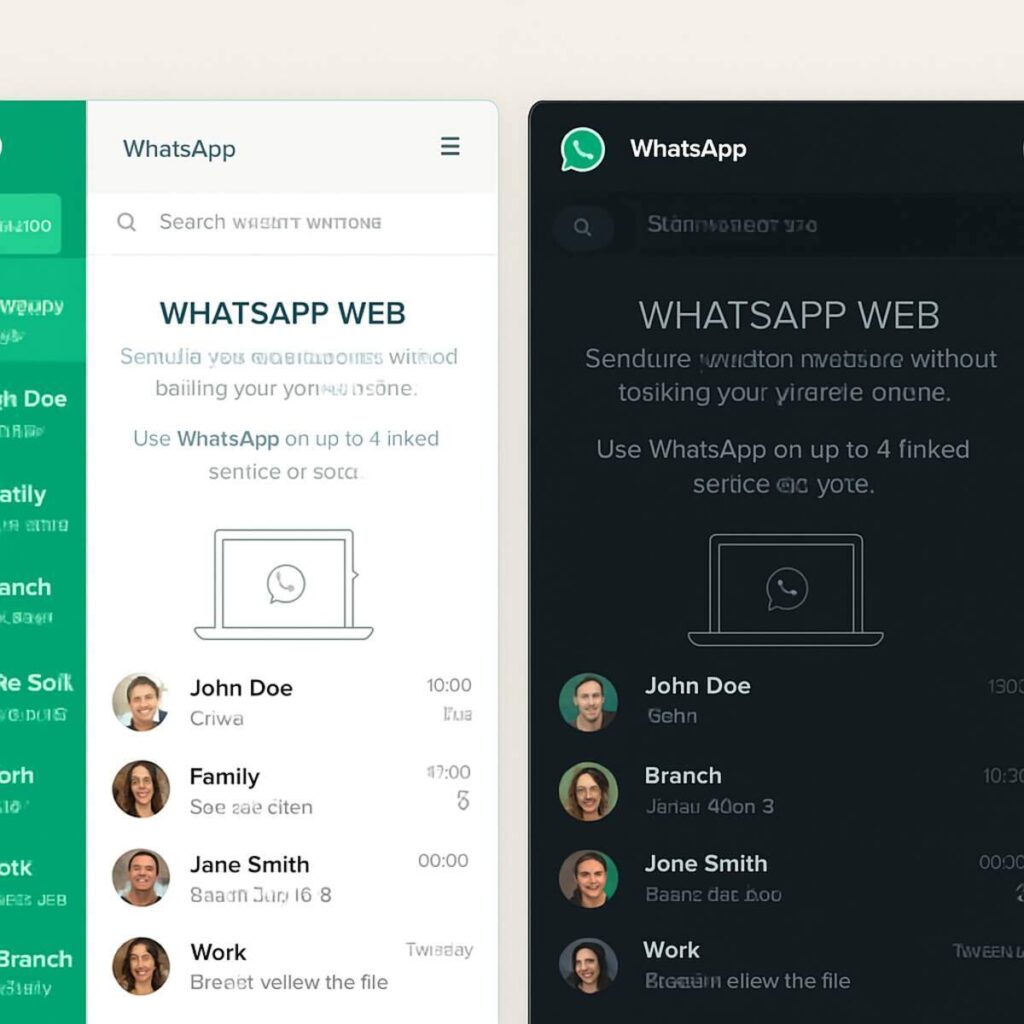
Have you ever tried typing out a long, detailed message on a tiny glass screen while your thumbs struggle to keep up? According to common workplace studies, picking up your smartphone every time it buzzes is an ultimate productivity killer. You break your focus, read the notification, and then spend valuable minutes trying to get back on track. Check out the Best info about Whatsapp web.
Moving your conversations to a desktop environment solves this daily frustration. Think of WhatsApp Web as a digital mirror reflecting exactly what is on your phone onto a much bigger screen. You are not creating a separate account or learning complicated new software. Whatever you type on the computer instantly appears on your mobile device.
In practice, stepping away from the mobile app offers a massive speed advantage. Industry data show that people can type up to 3 times faster using a physical keyboard than with touchscreen thumbs. Keeping your eyes on a single monitor lets you comfortably chat with family or colleagues without constantly reaching into your pocket.
Your computer holds the key to a smoother, faster messaging experience. Connecting your device lets you type faster, block digital distractions, and manage everyday files directly from your desktop.
Connect in 10 Seconds: A No-Fuss Guide to Your First WhatsApp Login
To move your chats to your computer, you will use a QR code—think of it as a secure, digital key shaped like a black-and-white square that unlocks your account on a new screen.
Getting connected takes less than ten seconds once you know where to look. Follow this quick sequence for a successful whatsapp login:
- Open your browser (like Chrome or Safari) on your computer and visit web.whatsapp.com.
- Grab your phone and open WhatsApp. On an iPhone, tap Settings at the bottom; on Android, tap the three dots at the top right.
- Select Linked Devices from the menu, then tap the button to link a new device.
- Point your phone’s camera at your computer screen to use the built-in QR code scanner and read the square on the website.
You won’t have to repeat this routine every time you want to chat. Check the “Keep me signed in” box directly below the code on your computer screen before you scan, ensuring your desktop remembers you for future work sessions.
Almost instantly, your familiar conversation list will populate on your computer monitor. The system bridges your mobile app and desktop through reliable background syncing.
The Mirroring Magic: How Syncing Messages Between Phone and Browser Works
After logging in, you might wonder if your chats are trapped on your computer. Fortunately, your desktop acts as a perfect mirror reflecting your mobile app. This means syncing WhatsApp messages happens instantly across both screens. When someone sends you a photo, you will see those real-time updates pop up on your monitor and phone simultaneously, keeping your conversations perfectly aligned.
Because these devices constantly communicate, every action you take is a two-way street. If you read a message on your desktop, the blue checkmarks immediately appear on your phone. However, this mirroring effect means you must be careful with the delete button. Removing a chat on your computer permanently deletes it from your mobile device as well.
Even though they are linked, your computer no longer relies on your phone’s active internet connection to keep working. Once connected, the website uses your desktop’s Wi-Fi, effectively eliminating any extra mobile data usage. You can safely leave your smartphone charging in the next room while you handle your conversations. With messages flowing seamlessly to the big screen, mastering keyboard shortcuts becomes the natural next step for faster communication.
Type Like a Pro: Mastering WhatsApp Web Keyboard Shortcuts
Constantly reaching for your mouse to click between conversations can slow down your speed typing and disrupt your focus. Just like you might use “Ctrl+C” to copy text in a document, the browser version of this app has its own set of “secret” keys. These WhatsApp Web keyboard shortcuts let you jump between conversations, quiet down busy groups, and open a “New Chat” window instantly without ever taking your hands off the keys.
Once you memorize a handful of these commands, your desktop becomes a highly efficient communication hub. Whether you use a Windows PC or a Mac, these productivity hacks will save you precious time throughout the day:
| Action | Windows Shortcut | Mac Shortcut | | :— | :— | :— | | New Chat | Ctrl + Alt + N | Cmd + Option + N | | Next Chat | Ctrl + Alt + Tab | Cmd + Option + Tab | | Mute Chat | Ctrl + Alt + Shift + M | Cmd + Option + Shift + M | | Archive Chat | Ctrl + Alt + E | Cmd + Option + E | | Mark as Unread | Ctrl + Alt + Shift + U | Cmd + Option + Shift + U | | Close Chat | Escape | Escape |
Imagine hearing a constant buzz from a family group chat while you are trying to work; now, you can mute that noisy group in less than two seconds with a quick keystroke. Navigating through dozens of chats without touching the mouse suddenly feels effortless. Even if your mobile battery dies right in the middle of this seamless workflow, modern updates keep you connected.
No Phone? No Problem: How to Use WhatsApp Web Without Your Phone Nearby
Your phone battery drops to zero right in the middle of a crucial conversation. In the past, this meant your computer would disconnect immediately, leaving you completely cut off from your chats until you found a charger. Today, knowing how to use WhatsApp Web without phone connections active saves you from this exact frustration.
Instead of just acting as a simple mirror, your computer can now talk directly to the internet. Through an update originally launched as the multi-device beta, you can securely link up to four different computers to your main account simultaneously. If you leave your smartphone in the car or it loses its cellular signal, your desktop continues to send and receive messages flawlessly.
Rest assured, your personal information stays strictly protected even when your mobile device is turned off. Every text, photo, and document sent through this standalone connectivity still scrambles itself with a unique digital lock before traveling across the web. Nobody can peek at your family chats or work files, because only your authorized computer screen holds the correct key to unscramble them. With this level of flexibility, you might wonder whether a standard web browser or a dedicated desktop app is the best choice for your setup.
WhatsApp Web vs Desktop App: Which One Should You Actually Install?
Opening a browser tab to check messages is quick, but it isn’t your only option. You face a choice between the flexibility of a web page and the power of a downloaded program. Understanding WhatsApp Web vs WhatsApp Desktop differences comes down to your daily habits. A web page works perfectly for occasional use, but a native app—software installed directly onto your computer—delivers much smoother overall operation.
Consider these key comparisons before making your choice:
- System Resources: The native app is generally kinder to your laptop battery, while heavy browser use can noticeably drain your battery faster.
- Notifications: Desktop applications provide reliable, built-in alerts, whereas browser pop-ups are often accidentally blocked or hidden.
- Shortcuts: The installed version includes expanded keyboard shortcuts designed specifically for your PC or Mac to speed up your typing.
Making voice and video calls is where the downloaded version truly shines. While the web interface lets you text effortlessly, only the desktop application lets you join face-to-face video chats and make crystal-clear voice calls straight from your computer. If taking a hands-free call matters to you, installing the software is absolutely worth it.
Whichever path you choose, staring at a bright white screen all day can quickly tire your eyes. Fortunately, both versions offer a simple way to darken your background and make reading much more comfortable.
Save Your Sight: How to Enable Dark Mode on WhatsApp Web Instantly
Staring at a glaring monitor during late-night chats is a recipe for headaches. Switching your interface to a darker color scheme drastically reduces blue light exposure and prevents uncomfortable eye strain. This simple adjustment swaps the bright white background for soothing dark grays, making text much easier to read in dimly lit rooms.
You can completely customize your interface in three simple clicks. If you are wondering how to enable dark mode on WhatsApp Web, start by clicking the three vertical dots at the top of your chat list. This opens your main menu, where you will select “Settings” and click “Theme” to reveal your dark theme settings. Choose “Dark” and hit “OK” to instantly transform your screen into a more comfortable view.
With your display feeling more relaxing to look at, protecting those personal conversations from wandering eyes becomes the next priority. Leaving your messages open on a shared family computer or an office desk can quickly compromise your privacy.
Stop the Prying Eyes: Setting Up a WhatsApp Web Screen Lock for Privacy
Stepping away from a shared family computer or busy office desk shouldn’t mean leaving personal messages open for anyone to read. Setting up a WhatsApp Web screen lock for privacy solves this exact problem. Instead of logging out and dealing with the hassle of scanning a QR code every time you return, you can simply lock the screen behind a custom password.
This handy feature acts like a digital boundary for your conversations. You can choose exactly when the lock kicks in, such as setting an auto-lock timer to activate after 1 minute of inactivity. If you get up to grab a cup of coffee, your screen automatically blurs to protect your password and maintain secure messaging while you are away.
Since you already know how to access your main menu, turning this on takes seconds:
- Click “Settings” and select “Privacy.”
- Scroll down to the bottom and click “Screen lock.”
- Check the box to enable it, create a memorable password, and choose your auto-lock time.
Beyond securing your text conversations, your computer is also equipped with more robust communication tools, such as a microphone and camera.
Beyond Simple Texting: A Guide to WhatsApp Web Voice and Video Calling
Holding your phone at arm’s length for a long video chat can quickly make your hand cramp. Moving those family catch-ups or quick work check-ins to your computer monitor offers a much more comfortable experience. A comprehensive WhatsApp Web voice and video calling guide shows you how easily your big screen can replace heavy software like Zoom or Skype for casual conversations.
Before you can start chatting, your computer needs to know it is allowed to use its built-in tools. When you click the phone or video icon in a chat for the first time, a small pop-up will appear near your web address bar. This is your browser asking for camera and microphone permissions, acting like a digital bouncer, verifying that you actually want WhatsApp to see and hear you. Simply click “Allow” to grant access, and your call will connect instantly.
While making these desktop calls directly through Google Chrome or Safari is incredibly convenient, you might notice occasional glitches if your internet connection fluctuates. If you plan to host hour-long meetings or daily video sessions, downloading the official WhatsApp desktop application often provides a smoother, more stable video feed than running it through a web browser. The standalone app handles heavy video data better, keeping your picture clear and your audio perfectly synced.
Upgrading your communication from a tiny glass screen to a full computer setup makes staying in touch effortless. For users balancing personal profiles with business accounts, running multiple accounts simultaneously on desktop requires a clever workaround.
Managing Two Lives: How to Handle Multiple WhatsApp Accounts in One Browser
Juggling work and personal phones at your desk often feels like a balancing act. Normally, the website forces you to log out of one account to access another. Fortunately, managing multiple WhatsApp accounts in a single browser is entirely possible, allowing you to run personal and work chats side by side without constantly logging out.
To achieve a seamless dual WhatsApp login, you simply need to open a separate digital space so the website doesn’t recognize you. Here are the easiest methods:
- The Incognito mode trick: Open a “Private” or “Incognito” window in your browser. This creates a temporary blank slate that bypasses your main login, allowing you to scan a second QR code.
- Different browsers: Keep it simple by opening your personal profile in Google Chrome and your business profile in Microsoft Edge or Safari.
- Chrome Profiles: If you need both accounts daily, creating a new user “Profile” in Chrome keeps them permanently separated.
Creating these boundaries keeps you from constantly reaching for mobile devices, but it also increases the volume of desktop alerts. Managing those notifications ensures critical messages don’t get lost in the noise.
The Ultimate Clean-Up: Pinning Chats and Managing Notifications for Focus
Ever miss a crucial text because a family group chat suddenly exploded with photos? When multiple conversations happen at once, important messages easily slide down your screen out of sight. You can stop this digital avalanche by locking your most critical contacts right at the top of your display.
The process to secure your favorite contacts is incredibly simple. Just right-click any conversation on the left side of your monitor and select “Pin to top” to permanently anchor that chat in place. You can lock up to three conversations simultaneously, making pinning chats on WhatsApp Web the best way to keep VIPs close for productivity.
For the rest of your busy inbox, a different approach to chat organization is required. If a group message distracts you with constant dings, right-click it and choose “Mute.” You can silence that specific group for 8 hours, a full week, or “Always,” so you can read updates only when you have free time.
Finally, you might want to stop tiny message previews from popping up on your computer monitor. Clicking the three vertical dots above your chats opens your Settings, where you can easily mute notifications and turn off desktop alerts entirely. With a peaceful inbox, the only remaining disruption might be an occasional dropped signal.
Fixing Connection Woes: Troubleshooting WhatsApp Web Connectivity Issues
Seeing a yellow phone not connected banner across your monitor quickly ruins a productive workflow. Even with a perfectly peaceful inbox, troubleshooting WhatsApp Web connectivity issues becomes necessary when messages suddenly refuse to send. This simply means the invisible link between your devices has temporarily broken down.
Because your desktop mirrors the app on your smartphone, both screens require a solid internet connection. If your phone drops its Wi-Fi, the computer version freezes right alongside it, often displaying a frustrating WhatsApp Web retrying warning. Identifying which device is offline solves half the puzzle instantly.
Fixing these connection drops takes only a few seconds if you follow this simple sequence:
- Check phone Wi-Fi: Wake up your mobile device and verify it has a strong internet connection.
- Try the magic refresh: Click the circular arrow near the top of your web browser (like Chrome or Safari) to reload the page.
- Clear the browser cache: Browsers sometimes hold onto old data, creating invisible digital clutter. Clearing this cache in your browser’s history settings often fixes stubborn freezing.
- Log out and log in: Click the three vertical dots above your chats, select “Log out,” and scan the QR code to reset everything.
A reliable signal means you can do much more than just type fast. Sending high-resolution images via your desktop ensures important photos and scanned documents look crystal clear on any screen.
Quality Matters: How to Send High-Resolution Images via Your Desktop
Have you ever noticed that a crisp family photograph sometimes looks slightly blurry after you share it? By default, the platform shrinks pictures to make them send faster and save data. While this automatic reduction is great for quick everyday snapshots, sending high resolution images on WhatsApp Web requires a different approach if you want to preserve every detail of a scanned recipe or a beautiful graduation portrait.
Bypassing this automatic size reduction is incredibly easy once you know the secret click. Instead of using the usual “Photos & Videos” icon, you can disable image compression entirely when sending a photo as a document. When you use the Document button (the icon that looks like a little piece of paper), the app treats your picture just like an important PDF file, transferring the raw, original image without altering a single pixel.
This simple trick works brilliantly for sharing large, detailed pictures, especially since the platform allows you to send files up to 2 GB. To further improve desktop chat, third-party browser extensions unlock features that the official version does not yet offer.
Chrome Superpowers: The Best Extensions to Level Up Your Experience
Have you ever wished your computer screen offered more privacy when coworkers walk by? Because you are using a browser, you can install tiny helper programs—called extensions—to customize your chat layout. Searching for the best Chrome extensions for WhatsApp Web unlocks brilliant features that the official desktop version simply does not offer.
Adding these productivity tools takes just a few clicks in the Chrome Web Store and instantly transforms how you message. Consider trying these safe, popular favorites:
- WA Web Plus: A massive privacy lifesaver that lets you blur recent messages so bystanders cannot read your screen. It also lets you add custom folders to organize your many chat threads.
- Zapp: When friends send long stories, this handy tool lets you play voice notes at 2x speed, saving valuable time.
Setting up these upgrades is incredibly straightforward. Just click “Add to Chrome” on their official store pages, and a tiny puzzle piece icon will appear at the top right of your browser, letting you turn these new superpowers on or off whenever you need them.
Before your screen gets cluttered with years of family updates and essential links, creating a permanent backup of important conversations is a smart move.
The Digital Paper Trail: How to Download and Save Your Chat History
Everyone has a conversation they want to keep, whether it is a heartfelt family memory or an important client agreement. Before trying to save everything, remember our mirroring analogy. Your browser just reflects your phone, meaning your actual chat history lives on your mobile device, not your computer.
Grabbing a specific record of a conversation is entirely manual on a desktop. You might wonder how to download WhatsApp Web chat history directly from your big screen. Simply click and drag your mouse over the desired text, use your computer’s copy shortcut, and paste it into a Word document to save it.
Saving attachments from these threads works differently from backing up messages and files locally. When you click the download arrow on a picture or PDF, your computer treats it like a standard internet file. These items automatically drop straight into your PC’s main “Downloads” folder, where you can then move them to a permanent folder.
To create an official export chat document containing years of messages, you must use your mobile app’s settings rather than the desktop app’s. If a sudden disconnection happens while managing these files between devices, you’ll need to rely on the QR scanner to get back in.
Scan Fail? What to Do When the QR Code Scanner Isn’t Working
Getting locked out when you need to type a quick message is frustrating. If you find the WhatsApp Web QR code scanner not working, the culprit is rarely a computer glitch. The number one cause of login failure is simply a smudged phone camera lens. Our phones travel in pockets all day, gathering dust and fingerprints that temporarily blind the camera.
Try these physical adjustments to resolve common scan issues during your login troubleshooting:
- Clean the lens: Wipe your phone’s back camera with a soft cloth.
- Increase screen brightness: Turn up your monitor’s light so the code stands out sharply.
- Check for ‘Dark Mode’ browser bugs: Dark themes sometimes hide the code’s necessary white borders; try switching your computer to light mode temporarily.
Time is also a factor when trying to connect. Think of that square pattern on your monitor as a temporary digital key. For your security, this key expires if you wait too long to scan it. When the square turns gray, simply click the green reload button in the center to generate a fresh key. Once safely logged in, utilizing built-in privacy settings keeps your active screen secure.
Ghost Mode: Using Disappearing Messages and Privacy Settings on the Web
Sharing a temporary Wi-Fi password or a quick grocery list should not clog up your chat history forever. You can easily keep your inbox clean by using disappearing messages on WhatsApp Web, a helpful feature that automatically deletes new texts after 24 hours or 7 days. Just click your contact’s name at the top of the chat screen to find and activate this temporary mode.
Extra protection is sometimes needed for sensitive photos, such as a private document or a credit card. When someone sends you view once media, it appears as a tiny number “1” instead of a regular image preview. Opening these files on your computer works exactly as it does on your phone: the photo disappears permanently the moment you close it, preventing anyone walking past your monitor from snooping.
Managing your availability matters just as much when using a computer in a shared space. By clicking the three vertical dots above your chats and opening your privacy settings, you can control who sees your ‘Last Seen’ status directly from your browser. With active conversations secured, tracking down specific receipts or documents sent months ago becomes much easier using built-in search tools.
Search Mastery: Finding Files, Links, and Messages in Seconds
We have all experienced the frustration of swiping endlessly through months of conversation just to find a dentist appointment. The simple search bar at the top of your screen easily solves this problem. Mastering how to search WhatsApp messages turns your overwhelming inbox into a perfectly organized digital filing cabinet.
Where you type your question makes a huge difference. Click the magnifying glass inside a specific chat if you know your spouse sent the document. When you completely forget who sent an address, use the main search box above your chat list instead. Quick background message indexing instantly scans your entire history, saving you from having to guess.
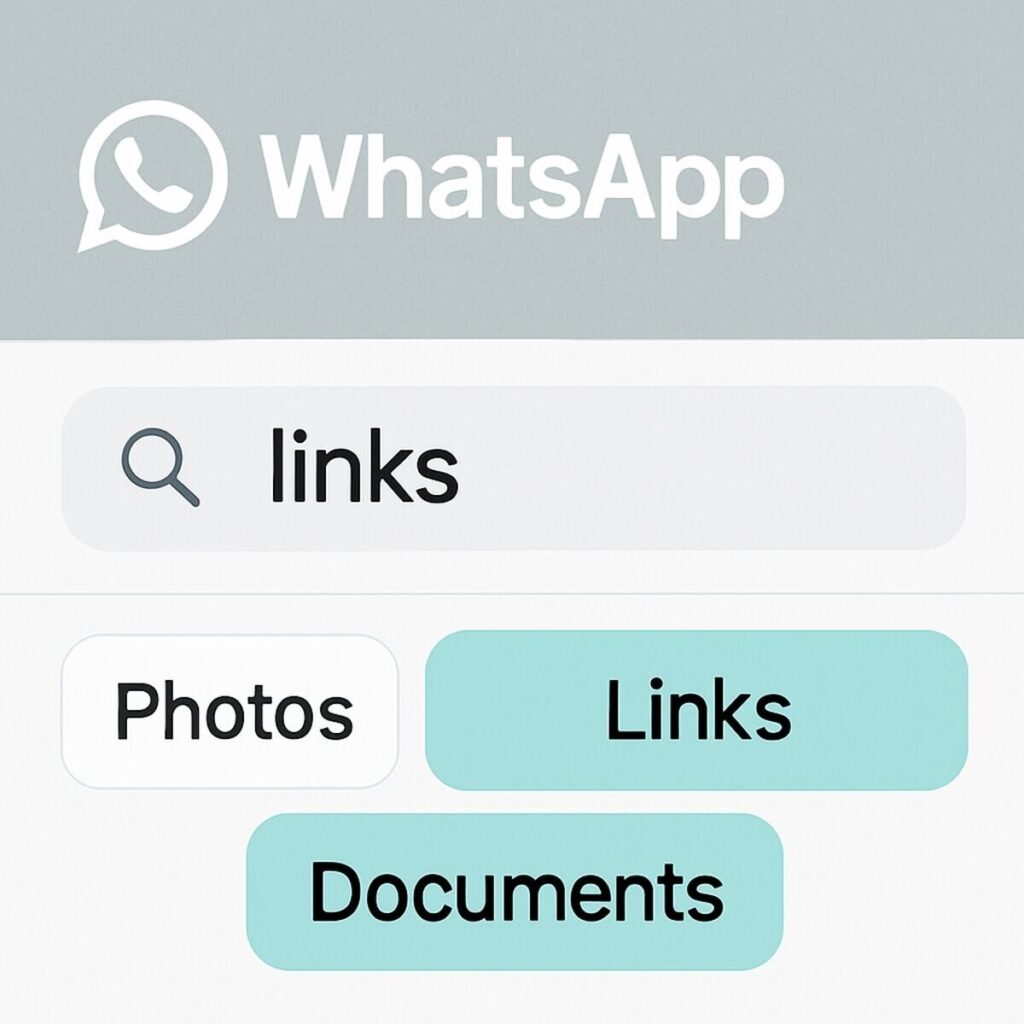
Sometimes you are hunting for a specific shared menu or video rather than plain text. Simply clicking inside the main search area reveals helpful Unified Search Filters, such as “Links” or “Documents.”
Selecting these categories is the absolute fastest way to find files on WhatsApp Web because it hides regular texts completely, bringing only your media to the surface.
This newfound organization is essential when dealing with crowded family or work environments, where group management becomes a breeze on desktop.
Group Management: Moderating and Organizing Chats from Your PC
Keeping a massive family reunion or neighborhood chat organized on a tiny mobile screen often feels like an impossible chore. When you switch to your computer, managing groups on desktop transforms that frustration into a quick, effortless task. Using a physical mouse and full keyboard lets you confidently moderate dozens of participants without constantly scrolling or accidentally tapping the wrong button.
Accessing your WhatsApp group admin tools requires just a single click on the group’s name at the top of your chat window. This action opens a spacious sidebar where you can instantly adjust your group settings without getting lost in deep menus. From this clear panel, you can easily handle the most important moderation duties:
- Adding members by searching your contacts or copying an invite link directly into an email.
- Changing group descriptions to prominently display important rules or upcoming event times.
- Managing permissions to tightly control who can send messages or update the group photo.
Taking control of these details ensures your digital community remains peaceful and completely organized. Once membership lists are updated and ground rules are set, sharing schedules or event flyers is as easy as dragging and dropping files.
Drag and Drop Efficiency: Moving Files from Your PC to Your Contacts
We all know the tedious routine of sharing a document saved on a computer: emailing the file to yourself, downloading it on your phone, and finally forwarding it in a chat. Sending files from PC completely eliminates this frustrating extra step. Your hard drive stores your important PDFs and large family photos, and now those items can be sent straight to your contacts in seconds.
Mastering this feature requires just a basic mouse maneuver you likely already use every day. To use drag-and-drop in WhatsApp Web, simply click and hold the file you want to share—like a downloaded recipe or resume—and drag it directly into your open chat window. As you hover over the conversation, the screen subtly changes color; release your mouse button, and your attachment is instantly ready to send.
Scaling this desktop efficiency is incredibly simple when you have a whole batch of memories to distribute. You can highlight multiple photos at once, dragging the entire group into the chat to send them in one effortless motion. Now that you are comfortably sharing files from your computer, ensuring those conversations remain private when you walk away requires you to securely terminate your web sessions.
Secure Your Logout: How to Remotely Terminate Web Sessions
Rushing away from your desk often means forgetting to close your browser, exposing personal conversations on a shared computer. Whether you used a library PC or share a family laptop, keeping chats open is risky. Taking steps to protect privacy is essential when you cannot physically return to the keyboard.
Fortunately, your mobile phone serves as a master control, allowing you to disconnect from anywhere. You can remotely logout WhatsApp Web directly from the palm of your hand, instantly severing the connection to that unattended desktop. This feature ensures you never panic about someone reading your private messages.
To check where your account is active, open the app on your phone, navigate to settings, and tap Linked Devices. This menu manages your linked devices security by showing a clear list of every connected computer. You will also see helpful details, like exactly when each session was last used.
A quick tap on any listed computer reveals a simple logout button that immediately removes your account from that screen. Securing this peace of mind perfectly wraps up your desktop setup, paving the way for a more efficient daily workflow.
Your New Daily Workflow: A Step-by-Step Plan for WhatsApp Efficiency
Typing on a tiny glass screen used to interrupt your workflow and slow you down. Now, you have the tools to manage your conversations comfortably from your computer, using your keyboard to reply to messages in half the time.
To make these time saving tips stick, implement a morning “cleanup” to build your own WhatsApp efficiency routine, ensuring a clutter-free and secure desktop chat environment.
- Pin important tasks or key family chats to the very top.
- Mute noisy group messages to protect your daytime focus.
- Use Keyboard shortcuts to navigate your chats instantly.
- Enable Dark mode to give your eyes a rest during long workdays.
- Logout securely when stepping away from a shared computer.
You don’t have to master every feature at once; applying just one technique today establishes a strong foundation. When you can confidently leave your device in another room without missing a beat, you streamline your communication and reclaim valuable focus time throughout your day.