



Introduction
Our gadgets keep us connected and organized in today’s fast-paced world. Apple’s ecosystem offers seamless integration of its devices, and one such feature is the ability to track your AirPods using the “Find My iPhone” feature. Whether you’ve misplaced your AirPods or they’ve been stolen, this guide will walk you through the simple process of adding AirPods to Find My iPhone.
Understanding Find My iPhone and AirPods Integration
Indeed, I’d be happy to help you understand the integration of “Find My iPhone” and “Find My AirPods,” both features Apple provides to locate your devices.
Find My iPhone: “Find My iPhone” is a service provided by Apple that helps you locate your lost or stolen iPhone, iPad, Mac, Apple Watch, or even AirPods. The service utilizes a combination of your device’s GPS, Wi-Fi, and cellular data to pinpoint its location on a map. To use this service, you need to have the “Find My” feature enabled on your device, and you can access it through the “Find My” app on your other Apple devices or through the iCloud website.
- Enabling Find My iPhone: To enable this feature, go to your device’s Settings > [Your Name] > Find Me> Find My iPhone, and turn it on.
- Using Find My iPhone: If your device is lost, you can use another Apple device with the “Find My” app or visit the iCloud website on a computer. You’ll be able to see the last known location of your device, play a sound on it to help locate it nearby, put it in Lost Mode (lock it with a passcode and display a message), or even remotely erase it to protect your data.
Find My AirPods: “Find My AirPods” is a subset of the “Find My iPhone” feature specifically designed to help you locate your lost AirPods or AirPods Pro. It can show you the last known location of your AirPods and play a sound to help you find them if they’re nearby.
- Enabling Find My AirPods: Find My AirPods is automatically enabled when you set up your AirPods with an Apple device signed in to your Apple ID.
- Using Find My AirPods: If your AirPods are misplaced or lost, you can open the “Find My” app on your iPhone, iPad, or other Apple devices. It will show the last known location of your AirPods on a map. If they’re within Bluetooth range, you can use the “Play Sound” option to make them emit a sound to help you locate them. Remember that this feature relies on your AirPods being connected to your device via Bluetooth.
Remember that for both “Find My iPhone” and “Find My AirPods,” your devices need to be powered on, connected to a cellular network or Wi-Fi, and have location services enabled for the tracking features to work effectively. It’s also important to note that these features are intended for legitimate use, such as finding misplaced devices or assisting with stolen devices, and not for unauthorized tracking.
Enabling Location Services for AirPods
If you want to use location services about your AirPods, you typically use the Find My app on your iPhone. Here’s how you can do that:
- Ensure iCloud is Set Up: Ensure your AirPods are connected to your iCloud account. This is usually done when you set up your AirPods for the first time.
- Enable Find My: Open the “Settings” app on your iPhone, then tap your name at the top to access Apple ID settings. Next, tap “Find Me” and ensure it’s turned on.
- Enable Find My AirPods: Within the “Find My” settings, you’ll see a list of devices linked to your iCloud account. Ensure “Find My AirPods” is enabled for each of your AirPods.
- Use Find My App: If you happen to misplace your AirPods, you can open the “Find My” app on your iPhone. This app will show the last known location of your connected AirPods. Please note that this location is based on the previous time your AirPods were connected to your iPhone via Bluetooth and may not be real-time if the AirPods are out of range.
- Play a Sound: If your AirPods are within Bluetooth range but can’t locate them visually, you can use the “Play Sound” option in the Find My app. This will cause your AirPods to emit a sound, helping you locate them more easily.
Remember, AirPods do not have standalone GPS or cellular capabilities. They rely on being connected to a device with those capabilities, like your iPhone, for location services.
Updating Your iOS for Optimal Compatibility
Always keep your iOS updated to the latest version to guarantee smooth integration. Compatibility issues arise if your software is outdated.
Indeed, I’d be happy to help you update your iOS device for optimal compatibility. Here’s a step-by-step guide:
- Check Device Compatibility: Before updating your iOS, ensure your device is compatible with the latest iOS version. Apple usually provides a list of compatible devices for each update.
- Backup Your Data: It’s essential to back up your device before updating, to prevent data loss in case anything goes wrong during the update process. You can back up your device using iCloud or iTunes.
- Connect to Wi-Fi: Make sure your device is connected to a stable Wi-Fi network. iOS updates can be pretty significant, and using cellular data might lead to extra charges or slower download speeds.
- Check Battery Level: Ensure your device has sufficient battery life or is connected to a power source. Having at least 50% battery is recommended before starting the update.
- Update Over-the-Air (OTA): To update your iOS over the air, go to “Settings” > “General” > “Software Update.” If an update is available, you’ll see a notification. Tap “Download and Install” and follow the on-screen instructions. Your device will restart during the process.
- Update Using iTunes (Mac and Windows): If you prefer, you can update your iOS using iTunes on a computer. Connect your device to the computer, open iTunes, and select your device. In the “Summary” tab, click on “Check for Update” and then “Download and Update.”
- Enter Passcode and Agree to Terms: During the update process, you might be asked to enter your device’s passcode and agree to terms and conditions. Follow the prompts to proceed.
- Wait for Update to Complete: Depending on your internet speed and the update size, the update process might take some time. Your device will restart multiple times. Do not interrupt the process.
- Complete Setup: After the update is installed, your device will restart. Follow the on-screen instructions to complete the setup. You should sign in with your Apple ID, set up Face ID or Touch ID, and configure other settings.
- Restore from Backup: If you backed up your data before updating, you can restore your device. During setup, choose to restore from iCloud or iTunes backup and select the most recent backup.
- Install App Updates: After updating your iOS, it’s also a good idea to update your apps. Go to the App Store and update your apps to ensure they are compatible with the new iOS version.
- Enjoy the New Features: Once the update is complete, you can enjoy the new features, improvements, and enhanced compatibility that the latest iOS version offers.
Remember that each iOS update might change the user interface and settings, so take some time to explore and adapt to any new features or modifications.
Connecting AirPods to Your Apple ID
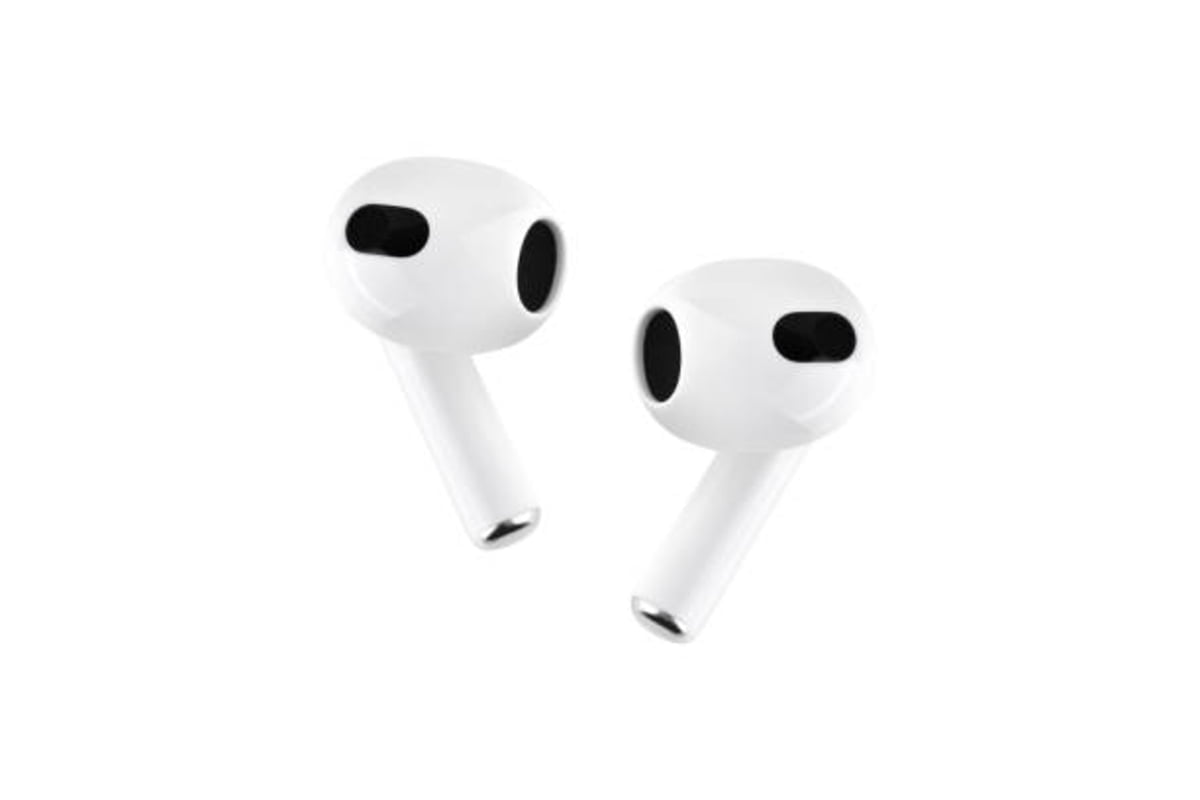

Link your AirPods to your Apple ID. This step is crucial for accurate tracking through the Find My iPhone app.
I’d happily help you connect your AirPods to your Apple ID. Please follow these steps:
- Prepare Your AirPods: Ensure that your AirPods are charged and ready for pairing.
- Unlock Your Device: Unlock the device (iPhone, iPad, Mac, etc.) you want to pair your AirPods with.
- Enable Bluetooth: Ensure Bluetooth is turned on for your AirPods and your device. You can usually find this option in the device’s settings.
- Open AirPods Case: Open the case of your AirPods. The AirPods should automatically enter pairing mode.
- Check Device Compatibility: Ensure your device is compatible with the AirPods model you’re trying to pair. Most Apple devices support AirPods, but it’s a good idea to check.
- Device Detection: A popup should appear on your device’s screen showing your AirPods nearby. Tap the “Connect” or “Pair” option on the popup.
- Apple ID Sign-in (If Required): In some cases, your Apple ID might be associated with the AirPods for features like iCloud syncing. If prompted, sign in with your Apple ID credentials.
- Setup Complete: Once the pairing process is complete, your AirPods should be connected to your device. You’ll hear a chime indicating the successful connection.
- Testing: Play some audio or make a call to ensure the audio is routed through your AirPods.
- Automatic Connection (Optional): After the initial setup, your AirPods should automatically connect to devices signed in with your Apple ID when they’re in range, and Bluetooth is enabled.
Remember, these steps might vary slightly depending on the device you’re using and the operating system version it’s running. If you encounter any issues, refer to the device’s user manual or Apple’s official support resources for more detailed instructions.
Enabling Find My iPhone for AirPods
Enable the Find My iPhone feature for your AirPods within your device settings. This allows the Find My app to locate them.
Certainly! Here are the steps to enable “Find My iPhone” for your AirPods:
- Open Settings: Open the “Settings” app on your iPhone or iPad.
- Tap Your Apple ID Banner: You’ll see your Apple ID banner at the top of the Settings screen. Tap on it.
- iCloud Settings: You’ll find various options in the Apple ID settings. Tap on “Find Me.”
- Find My iPhone: In the “Find My” settings, you should see “Find My iPhone” and “Find My Network.” Make sure “Find My iPhone” is toggled on.
- Enable Find My Network (Optional): You can also enable “Find My Network,” which uses other Apple devices to help locate your AirPods if they’re not connected to your iPhone or iPad. This can be especially useful if your AirPods are out of range of your device.
- Confirm with Apple ID Password: You might be prompted to enter your Apple ID password or use Face ID / Touch ID to confirm your identity.
- Enable Offline Finding: Ensure that “Enable Offline Finding” is turned on in the Find My settings. This feature allows your AirPods to be located even when not connected to your device.
- Using Find Me: If you ever misplace your AirPods, you can use the “Find My” app on another Apple device or visit the iCloud website on a computer to locate them. The app will show the last known location of your AirPods, and if they’re within Bluetooth range, you can also make them play a sound to help you locate them.
Enabling “Find My iPhone” for your AirPods is a great way to ensure you can quickly locate them if they go missing or are misplaced. Remember that for this feature to work, your AirPods need to be connected to your device or at least within Bluetooth range of an instrument signed in with the same Apple ID.
Locating Your AirPods Using Find My iPhone
When your AirPods are misplaced, open the Find My app on a connected Apple device to pinpoint their location.
Of course! Here’s how you can locate your AirPods using the “Find My iPhone” feature:
- Open Find My App: Open the “Find My” app on your iPhone or iPad. This app tracks the location of your Apple devices, including AirPods.
- Sign In: If you still need to be signed in, enter your Apple ID and password to log in.
- Select Devices: At the bottom of the screen, tap on the “Devices” tab. You should see a list of all your Apple devices associated with your Apple ID.
- Choose Your AirPods: Find them in the list and tap on them. The app will attempt to locate your AirPods on the map. If your AirPods are connected to your device or within Bluetooth range, their location will be shown accurately.
- Map View: The app will show you a map with the approximate location of your AirPods. It might be a bit different, but it should give you a general idea of where they are.
- Play Sound (Optional): If your AirPods are nearby and connected to your device, you can play a sound to help you locate them. This can be especially useful if they’re hidden somewhere close by.
- Lost Mode (Optional): If you can’t find your AirPods, you can enable “Lost Mode.” This locks your AirPods and displays a message with your contact information on the device they’re connected to in case someone finds them.
- Directions: The app also provides recommendations for the approximate location of your AirPods. This can be helpful if they need to be right next to you.
Please note that for the “Find My iPhone” feature to work, your AirPods must be connected to your device or within Bluetooth range of an instrument signed in with the same Apple ID. If your AirPods are out of range, you can see their last known location when connected to your device.
Playing a Sound on AirPods via Find My iPhone
Trigger a sound on your lost AirPods through the Find My app. This aids in locating them if they’re nearby.
Certainly! Here’s how you can play a sound on your AirPods using the “Find My iPhone” feature:
- Open Find My App: Open the “Find My” app on your iPhone or iPad. This app tracks the location of your Apple devices, including your AirPods.
- Sign In: If you still need to be signed in, enter your Apple ID and password to log in.
- Select Devices: At the bottom of the screen, tap on the “Devices” tab. You should see a list of all your Apple devices associated with your Apple ID.
- Choose Your AirPods: Find them in the list and tap on them.
- Play Sound: On the next screen, you’ll see a few options. Tap on “Play Sound.” This will initiate a loud and distinctive sound from your AirPods, making it easier to locate them if they’re nearby.
- Sound Continues: The sound will play for about two minutes until you stop it by tapping the “Stop” button on the screen.
- Locate Your AirPods: Follow the sound to locate your AirPods. This can be especially helpful if you’ve misplaced them in your home or another familiar location.
- Stop the Sound: Once you’ve located your AirPods, you can stop the sound by tapping the “Stop” button in the Find My app.
Using the “Play Sound” feature through the Find My app is a great way to find your AirPods if you’ve misplaced them nearby quickly. Remember that this feature requires your AirPods to be connected to your device or within Bluetooth range of an instrument signed in with the same Apple ID. If your AirPods are out of range, you can play a sound on them once they come back within range.
Remember that the sound might be quiet if your AirPods are in a closed case or under something, so listen carefully for the sound’s direction.
Enabling Lost Mode for Your AirPods
Lost Mode locks your AirPods and tracks their movement history. You can display a custom message on their screen.
Certainly! Here’s how you can enable Lost Mode for your AirPods using the “Find My iPhone” feature:
- Open Find My App: Open the “Find My” app on your iPhone or iPad. This app helps you locate your Apple devices, including your AirPods.
- Sign In: If you still need to be signed in, enter your Apple ID and password to log in.
- Select Devices: At the bottom of the screen, tap on the “Devices” tab. You’ll see a list of all the Apple devices associated with your Apple ID.
- Choose Your AirPods: Find them in the list and tap on them.
- Enable Lost Mode: On the next screen, you’ll see various options. Tap on “Enable Lost Mode.”
- Customize Message (Optional): You can enter a custom message displayed on the device connected to your AirPods if someone finds them. This message could include your contact information so that the person who finds your AirPods can contact you.
- Set Contact Number: You can also set a phone number that will be displayed on the device in case someone wants to contact you about the found AirPods.
- Turn on Notifications (Optional): You can receive notifications about your AirPods’ location, even after they’ve been put in Lost Mode. This can be helpful to keep track of any updates.
- Secure Your AirPods (Optional): You might be prompted to set a passcode to secure your AirPods. This adds an extra layer of security to prevent unauthorized use.
- Lost Mode Activated: After enabling Lost Mode, your AirPods will be locked, and the custom message (if provided) will be displayed on the device they’re connected to when someone finds them.
- Locate Your AirPods: You can continue to track the location of your AirPods through the Find My app. The app will show their last known location if they’re out of Bluetooth range.
- Deactivating Lost Mode: When you’ve located your AirPods or if they’re returned to you, you can deactivate Lost Mode through the Find My app.
Enabling Lost Mode is helpful if your AirPods are lost, and you want to secure them or provide contact information for someone who finds them. Remember that for Lost Mode to work, your AirPods must be connected to a device signed in with the same Apple ID or within Bluetooth range.
Marking AirPods as Lost on Find My iPhone
If your AirPods are stolen, mark them as lost on the Find My app to prevent unauthorized use.
Certainly! Here’s how you can mark your AirPods as lost using the “Find My iPhone” feature:
- Open Find My App: Open the “Find My” app on your iPhone or iPad. This app allows you to track the location of your Apple devices, including your AirPods.
- Sign In: If you still need to be signed in, enter your Apple ID and password to log in.
- Select Devices: At the bottom of the screen, tap on the “Devices” tab. You’ll see a list of all the Apple devices associated with your Apple ID.
- Choose Your AirPods: Find them in the list and tap on them.
- Mark as Lost: On the next screen, you’ll see several options. Tap on “Mark as Lost.”
- Customize Message (Optional): You can enter a custom message displayed on the device connected to your AirPods if someone finds them. This message could include your contact information so that the person who finds your AirPods can contact you.
- Set Contact Number: You can also set a phone number that will be displayed on the device in case someone wants to contact you about the found AirPods.
- Turn on Notifications (Optional): You can receive notifications about your AirPods’ location, even after they’ve been marked as lost. This can help you keep track of any updates.
- Secure Your AirPods (Optional): You might be prompted to set a passcode to secure your AirPods. This adds an extra layer of security to prevent unauthorized use.
- AirPods Marked as Lost: After marking your AirPods as lost, the custom message (if provided) will be displayed on the device they’re connected to when someone finds them.
- Locate Your AirPods: You can continue to track the location of your AirPods through the Find My app. The app will show their last known location if they’re out of Bluetooth range.
- Removing Lost Status (Optional): When you’ve located your AirPods or if they’re returned to you, you can remove the “Lost” status through the Find My app.
Marking your AirPods as lost is a helpful feature if they’re misplaced, or you’re concerned about their security. It provides information for someone who might find them and enables you to track their location. Remember that for this feature to work, your AirPods must be connected to a device signed in with the same Apple ID or at least within Bluetooth range.
Removing AirPods from Find My iPhone
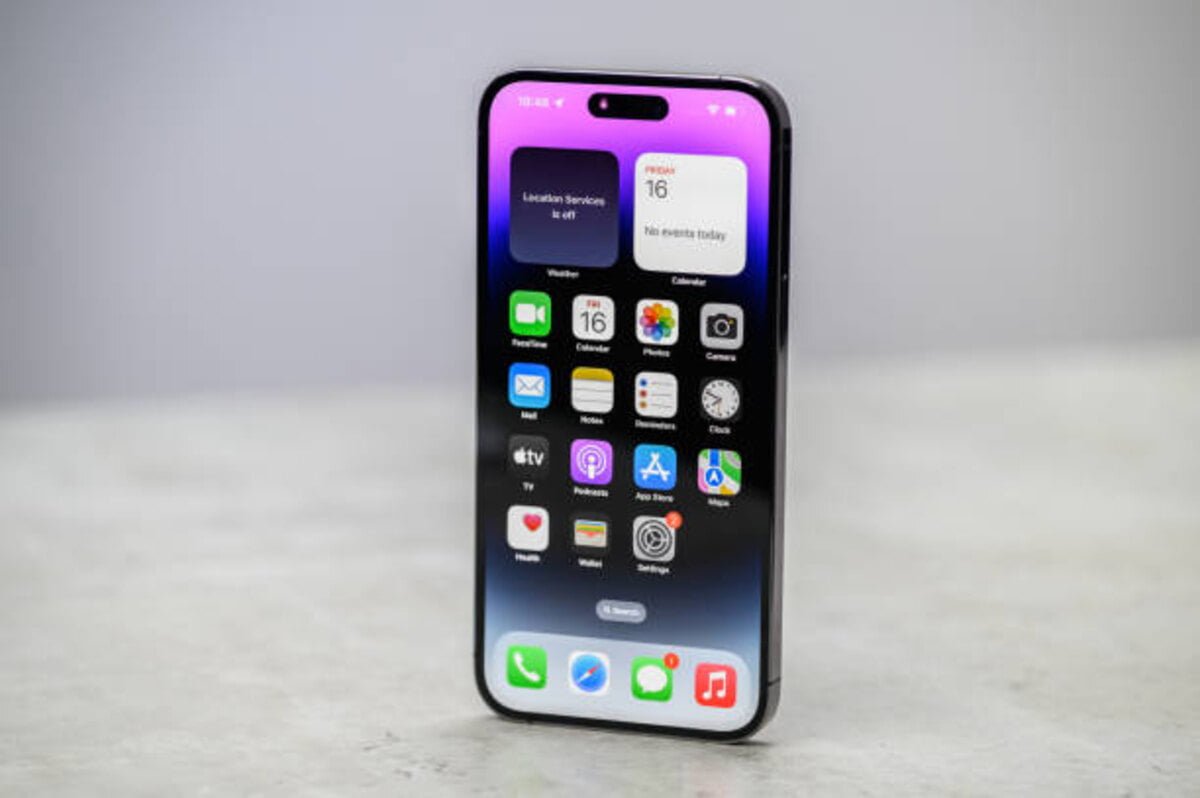

If you’ve sold or given away your AirPods, remember to remove them from the Find My app to ensure the new owner’s privacy.
Certainly! Here’s how you can remove your AirPods from the “Find My iPhone” feature:
- Open Settings: Open the “Settings” app on your iPhone or iPad.
- Tap Your Apple ID Banner: At the top of the Settings screen, tap on your Apple ID banner.
- iCloud Settings: In the Apple ID settings, tap “Find Me.”
- Find My iPhone: In the “Find My” settings, you should see “Find My iPhone” and “Find My Network.” Tap on “Find My iPhone.”
- Toggle Off Find My iPhone: On the Find My iPhone settings screen, toggle off the switch next to “Find My iPhone.” You might be prompted to enter your Apple ID password to confirm.
- Disable Offline Finding (Optional): If you have enabled “Find My Network” for your AirPods, you can toggle off the switch next to “Enable Offline Finding” as well.
- Remove AirPods from iCloud: To remove your AirPods from Find My iPhone, you can also remove them from your iCloud account. Return to the main Apple ID settings screen and tap “iCloud.”
- Manage Storage: In the iCloud settings, tap “Manage Storage.”
- AirPods in Storage: You’ll see a list of devices associated with your iCloud account. Find your AirPods in the list and tap on them.
- Remove AirPods: On the next screen, tap “Remove from Account.” Confirm the removal if prompted.
After following these steps, your AirPods should no longer be connected to the Find My iPhone feature and will be removed from your iCloud account. Please note that withdrawing your AirPods from Find My iPhone means you won’t be able to track them using the app anymore. If you’re selling or giving away your AirPods, removing them from your iCloud account is a good idea to ensure that the new owner can set them up without any issues.
Tips to Improve AirPods Tracking Accuracy
Maximize tracking accuracy by keeping your AirPods charged and maintaining a clear line of sight with your connected device.
Certainly! Here are some tips to help improve the tracking accuracy of your AirPods using the “Find Me” feature:
- Keep Bluetooth On Ensure that Bluetooth is turned on both on the device you’re using to track your AirPods and on the AirPods themselves. Bluetooth is essential for communication between devices and accurate location tracking.
- Stay Within Range: For the most accurate tracking, stay within the Bluetooth range of your AirPods. The closer your AirPods are to your device, the more precise their location will be.
- Use Wi-Fi and Cellular Data: If your AirPods are connected to a device with an active Wi-Fi or cellular data connection, they can provide more accurate location data, especially when out of Bluetooth range.
- Update iOS and Firmware: Keep your iOS device and AirPods firmware current. Updates often include improvements that can enhance tracking accuracy.
- Enable Location Services: Ensure that “Location Services” is enabled on your iOS device. This helps with location tracking by using GPS and Wi-Fi data.
- Use “Play Sound” Feature: If your AirPods are nearby, the “Play Sound” feature in the Find My app can help you locate them more accurately, especially if hidden under something.
- Check AirPods Battery Level: If your AirPods have a low battery, they might respond to tracking requests less effectively. Charge them and try again.
- Try Different Locations: If you’re having trouble tracking your AirPods from one location, try moving to a different spot. Sometimes signal interference or obstacles can affect accuracy.
- Enable Offline Finding: Turn on “Enable Offline Finding” in the Find My settings. This allows your AirPods to be located even when they’re not connected to your device.
- Use Find My Network: If supported, enable “Find My Network” to leverage the collective power of nearby Apple devices to help locate your AirPods.
- Stay Updated on iCloud: Ensure that your iCloud account information is current. Sometimes, updating or incorrect account details can affect tracking.
- Avoid Obstacles: Walls, furniture, and other obstacles can weaken Bluetooth signals. Position yourself in a location with a clear line of sight to your AirPods.
- Check Find My Accuracy: Remember that Find My’s accuracy might only sometimes be pinpointed. It’s designed to provide a general idea of your AirPods’ location, but it might only sometimes be perfectly accurate.
Remember that even with these tips, there might be instances where tracking accuracy could be improved, especially if your AirPods are out of range or in an area with poor signal strength. If you need help locating your AirPods, it’s a good idea to double-check your settings and connections.
Troubleshooting: AirPods Not Showing on Find My iPhone
If your AirPods aren’t appearing on the Find My app, follow our troubleshooting guide to resolve common issues.
If your AirPods are not showing up on the “Find My iPhone” app, there could be a few reasons for this issue. Here are some troubleshooting steps you can follow:
- Check AirPods Connectivity: Ensure that your AirPods are turned on and connected to a device. If they’re in the case and the case is closed, they might not show up on Find My iPhone.
- Enable Bluetooth: Ensure Bluetooth is turned on on your iPhone/iPad and your AirPods. Bluetooth is required for communication between devices and accurate tracking.
- Enable Location Services: Check if Location Services is enabled for the Find My app on your device. Go to “Settings” > “Privacy” > “Location Services” and make sure Find My is set to “While Using the App” or “Always.”
- Check iCloud Account: Verify that you’re signed in to the correct iCloud account on your device and that the AirPods are associated with the same account.
- Check AirPods Ownership: If you recently bought used AirPods, ensure the previous owner removed them from their iCloud account. Otherwise, you won’t be able to track them.
- Update iOS: Ensure your iPhone or iPad is running the latest version of iOS. Software updates often include bug fixes and improvements.
- Restart iPhone and AirPods: Try restarting your iPhone/iPad and your AirPods. This can help resolve temporary glitches.
- Check Internet Connection: Ensure your iPhone/iPad has an active internet connection through Wi-Fi or cellular data.
- Enable Find My Network (iOS 15 and later): If you’re using iOS 15 or later, consider enabling the Find My Network feature, which employs nearby Apple devices to help locate your AirPods.
- Reset AirPods: If the issue persists, you might need to reset your AirPods. Please put them in the case, open the lid, and press and hold the setup button on the back until the status light starts flashing white. Then, reconnect them to your device.
- Contact Apple Support: If none of the above steps work, it’s a good idea to contact Apple Support for further assistance. They can help you troubleshoot the issue and provide specific guidance.
Remember that the availability of certain features and troubleshooting steps might vary depending on the iOS version you’re using and the specific model of AirPods you have.
Theft Prevention and Security Measures
Implement security practices to safeguard your AirPods from theft, including keeping them in their case when not in use.
To prevent theft and enhance the security of your AirPods, consider the following measures:
- Activation Lock: Ensure that your AirPods are associated with your iCloud account and Activation Lock is enabled. This makes it difficult for anyone else to set up and use your AirPods if they’re lost or stolen.
- Keep AirPods Secure: When you’re not using your AirPods, store them in their case and keep the issue secure. Avoid leaving them lying around in public areas.
- Use a Protective Case: Invest in a protective case for your AirPods case. This can help prevent scratches and make it less conspicuous to potential thieves.
- Secure Your Phone: Keep your iPhone or paired device secure with a passcode, Touch ID, or Face ID. This prevents unauthorized access to your AirPods if connected to your device.
- Enable Find Me: Enable the “Find My” feature on your AirPods. This allows you to track their location if lost or stolen and helps deter theft.
- Avoid Displaying: Avoid openly displaying your AirPods in public, which might attract unwanted attention.
- Use a Lanyard or Tether: Consider using a lanyard or rope that attaches to your AirPods case. This can make it harder for someone to snatch them and run.
- Public Places Caution: Be cautious when using your AirPods in crowded or unfamiliar places, as these situations can be prime opportunities for theft.
- Use Lost Mode: If your AirPods are lost, immediately put them in Lost Mode through the Find My app. This locks your AirPods and displays your contact information on the connected device’s screen.
- Report Stolen AirPods: If your AirPods are stolen, report the theft to local law enforcement. Share any relevant information, such as serial numbers or identifying marks.
- Register Serial Numbers: Keep a record of the serial numbers of your AirPods and their case. This information can be helpful if you need to report them as stolen.
- Check for Updates: Keep your iOS device, AirPods, and firmware current. Updates often include security improvements.
- Use Two-Factor Authentication: Enable two-factor authentication for your Apple ID to add an extra layer of security to your account.
- Insurance or Warranty Coverage: Consider insuring your AirPods or purchasing an extended warranty that covers theft or loss.
Remember that while these measures can help prevent theft and enhance security, no method is foolproof. Being vigilant and cautious in various situations can go a long way in keeping your AirPods safe.
Conclusion
Integrating AirPods with Find My iPhone provides a valuable layer of security and peace of mind. Following the steps outlined in this guide, you can effectively add your AirPods to the Find My app and ensure their safety. Stay updated with the latest iOS versions and adopt theft-prevention measures to enhance your overall experience.
FAQ
Can I track AirPods if they're not connected to my device?
Yes, as long as your AirPods have an active internet connection, their location can be tracked using the Find My app.
What if I lost only one AirPod? Can I still use Find My iPhone?
Absolutely! The Find My app allows you to locate individual AirPods even if you've lost just one.
Are my AirPods traceable if they're inside their charging case?
The Find My app can't track AirPods when they're inside the closed charging case. They need to be outside the case and within Bluetooth range.
Can I play a sound on AirPods if they're in the case?
Unfortunately, the sound feature only works when the AirPods are outside the case and connected to your device.
Is there a way to prevent my AirPods from being reset by thieves?
Yes, enabling Activation Lock via iCloud can prevent thieves from resetting and using your AirPods without your Apple ID credentials.